Check your billing
See your subscription status and open Stripe to manage your billing.
Before you start
- Sign in to the customer portal. See Sign up and sign in.
- Buy at least one calculator group to have a subscription. See Buy calculator groups.
Steps
-
In the left menu, select Billing.
-
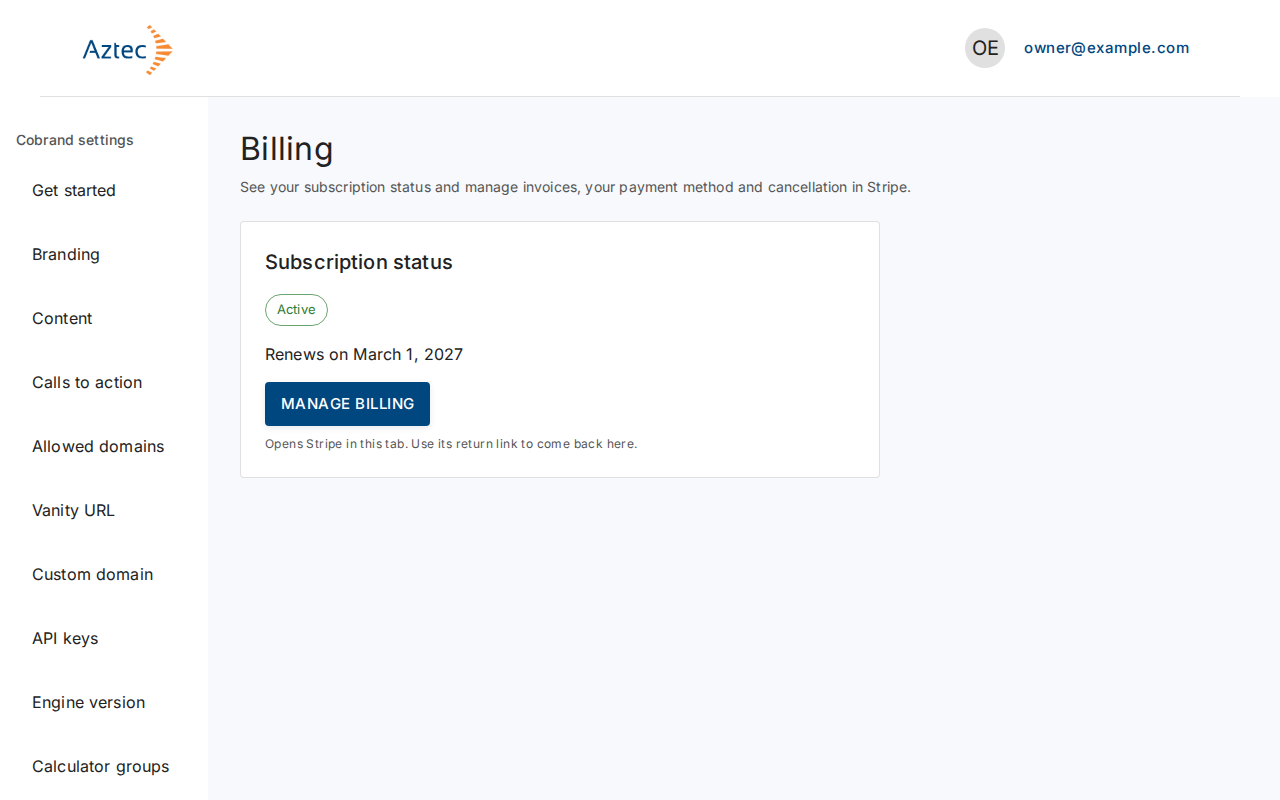
Read Subscription status: Active, Past due or Canceled. An active subscription shows its renewal date.
-
Select Manage billing. The page shows "Opening billing…", then opens Stripe.
-
Manage your billing details there. Use the Stripe return link to come back.
What you see when it works
The page shows your status and, for an active subscription, "Renews on" followed by the date. If you cancel, it shows "Your subscription ends on" followed by the date and tells you the calculators stay live until then.
Troubleshooting
-
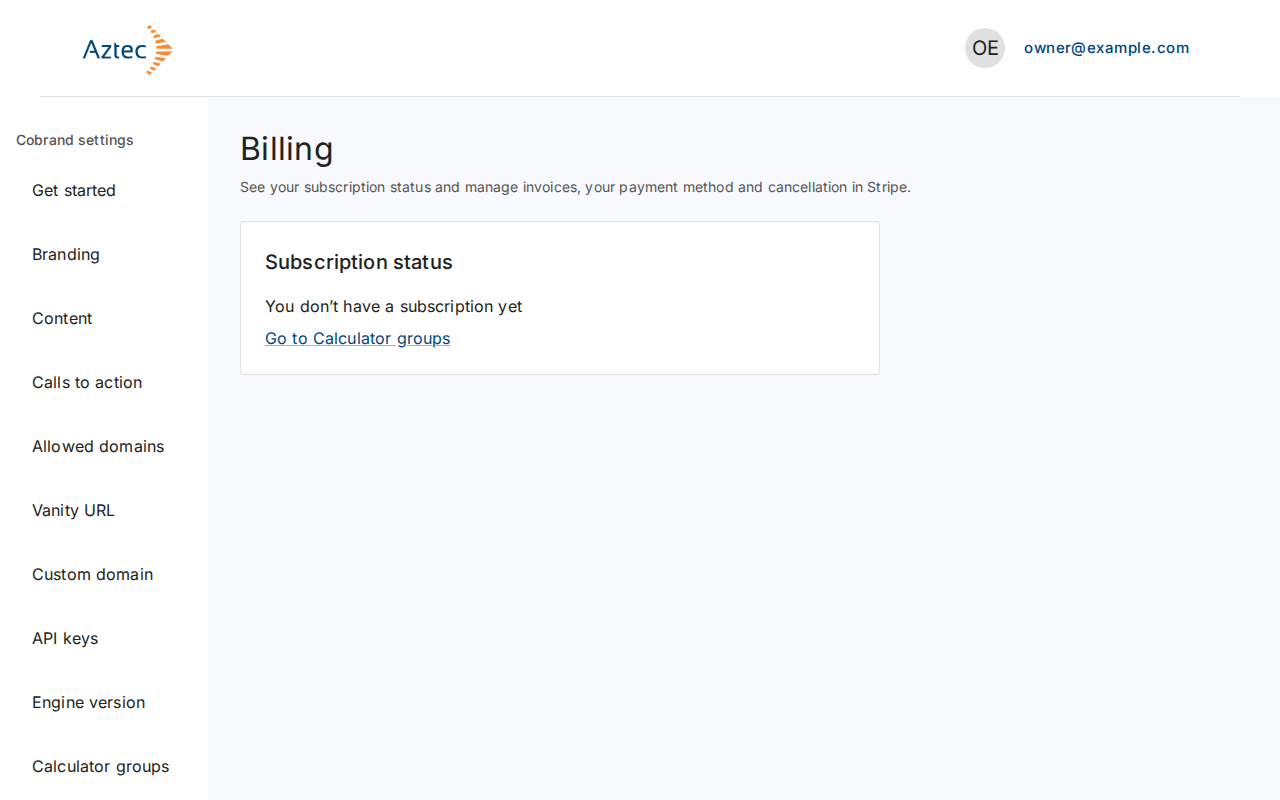
You don’t have a subscription yet. There is no Manage billing button. Select Go to Calculator groups and buy a group.
-
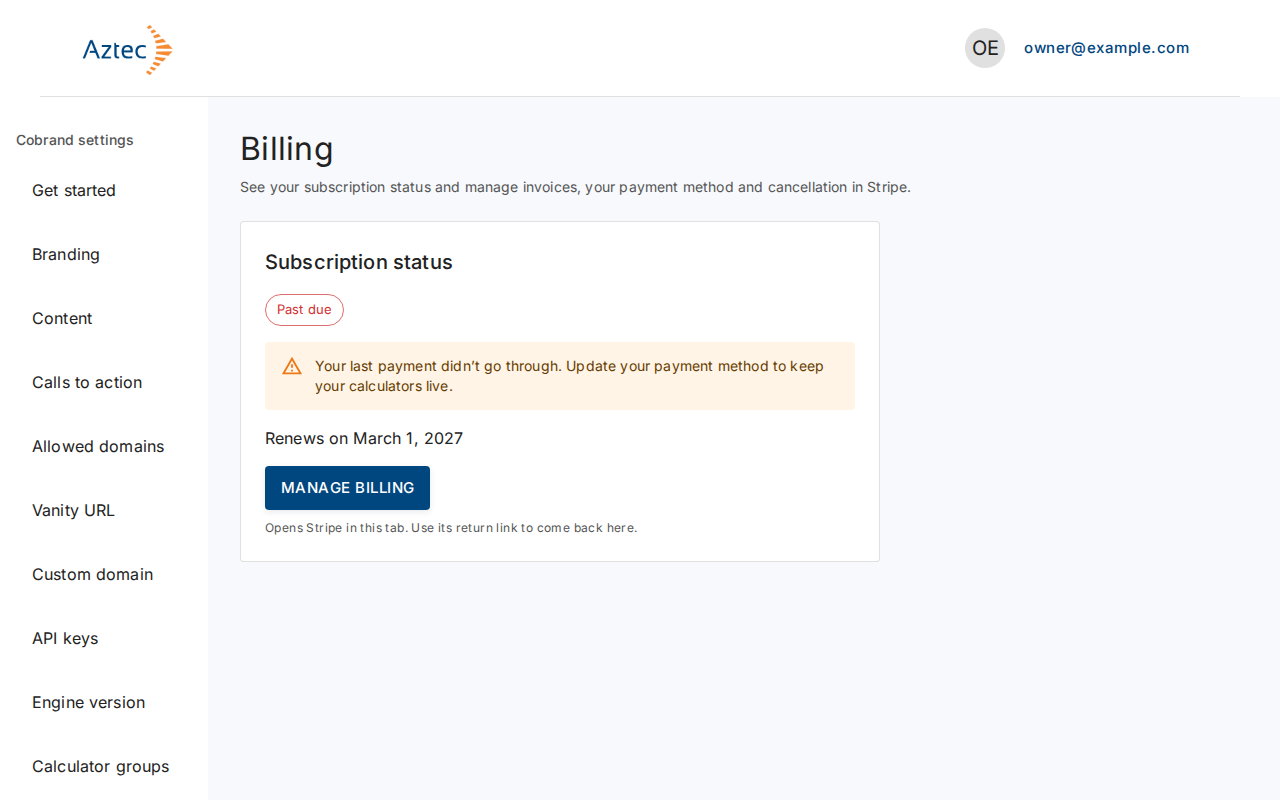
Past due. The page warns "Your last payment didn’t go through." Select Manage billing and update your payment method.
-
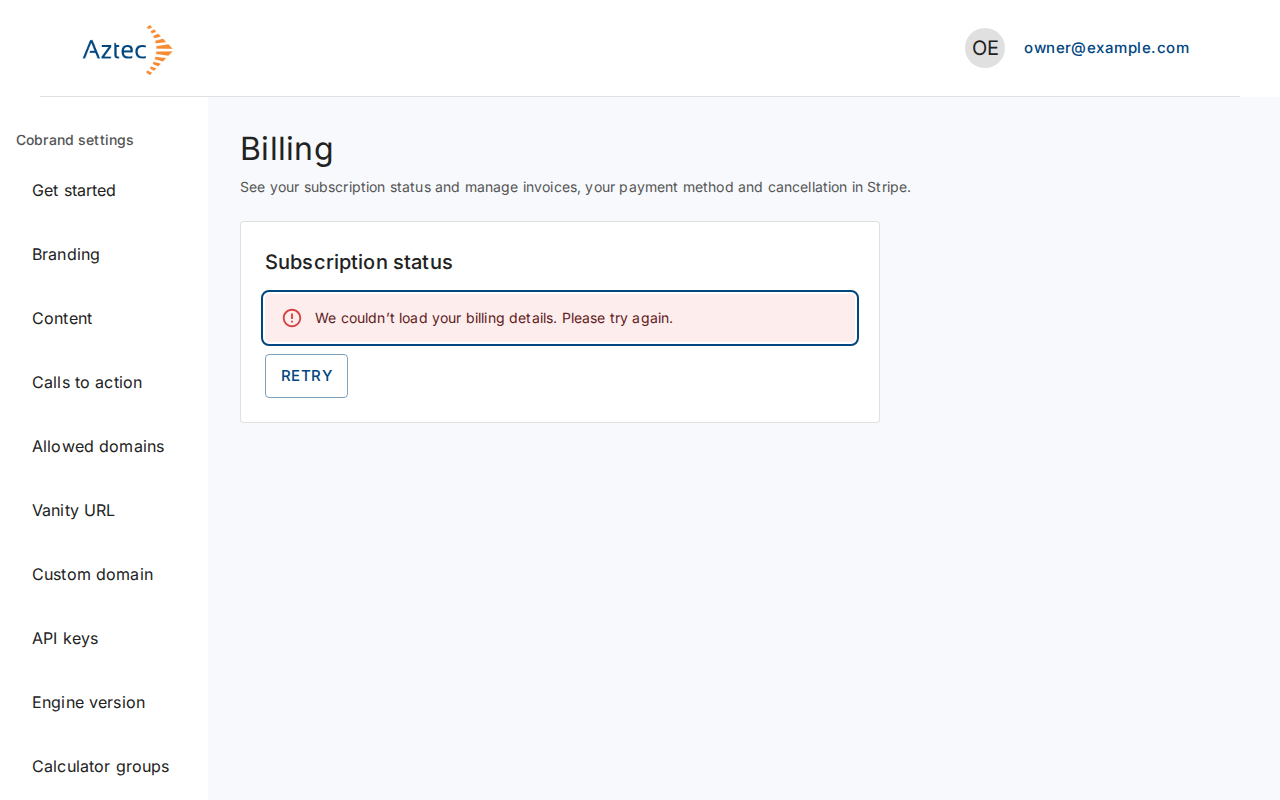
We couldn’t load your billing details. Select Retry. The page shows "We couldn’t open billing. Please try again." if Stripe doesn't open; select Manage billing again.
-
Canceled. You can still select Manage billing to see invoices.