Brand your calculators
Add your logo and colors so your calculators match your company's look.
Before you start
- Sign in to the customer portal as the account owner.
- Have a logo file ready: PNG, JPG or SVG, up to 1 MB. Raster images must be at least 120 × 40 px.
- Pick a primary and a secondary color as 6-digit hex values, such as
#1A4F8B.
Steps
-
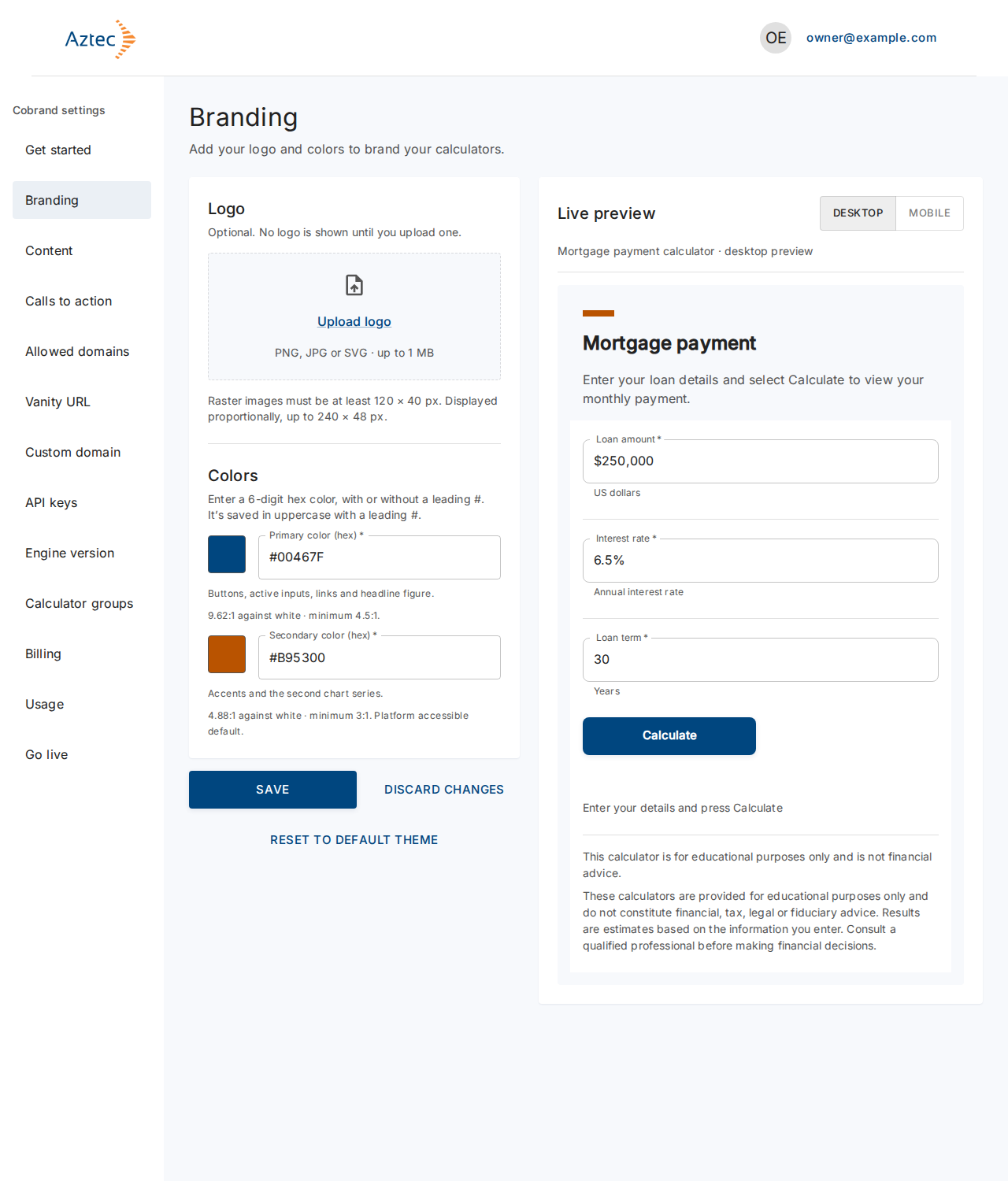
In the left menu under Cobrand settings, select Branding. A new account shows the platform default colors and no logo.
-
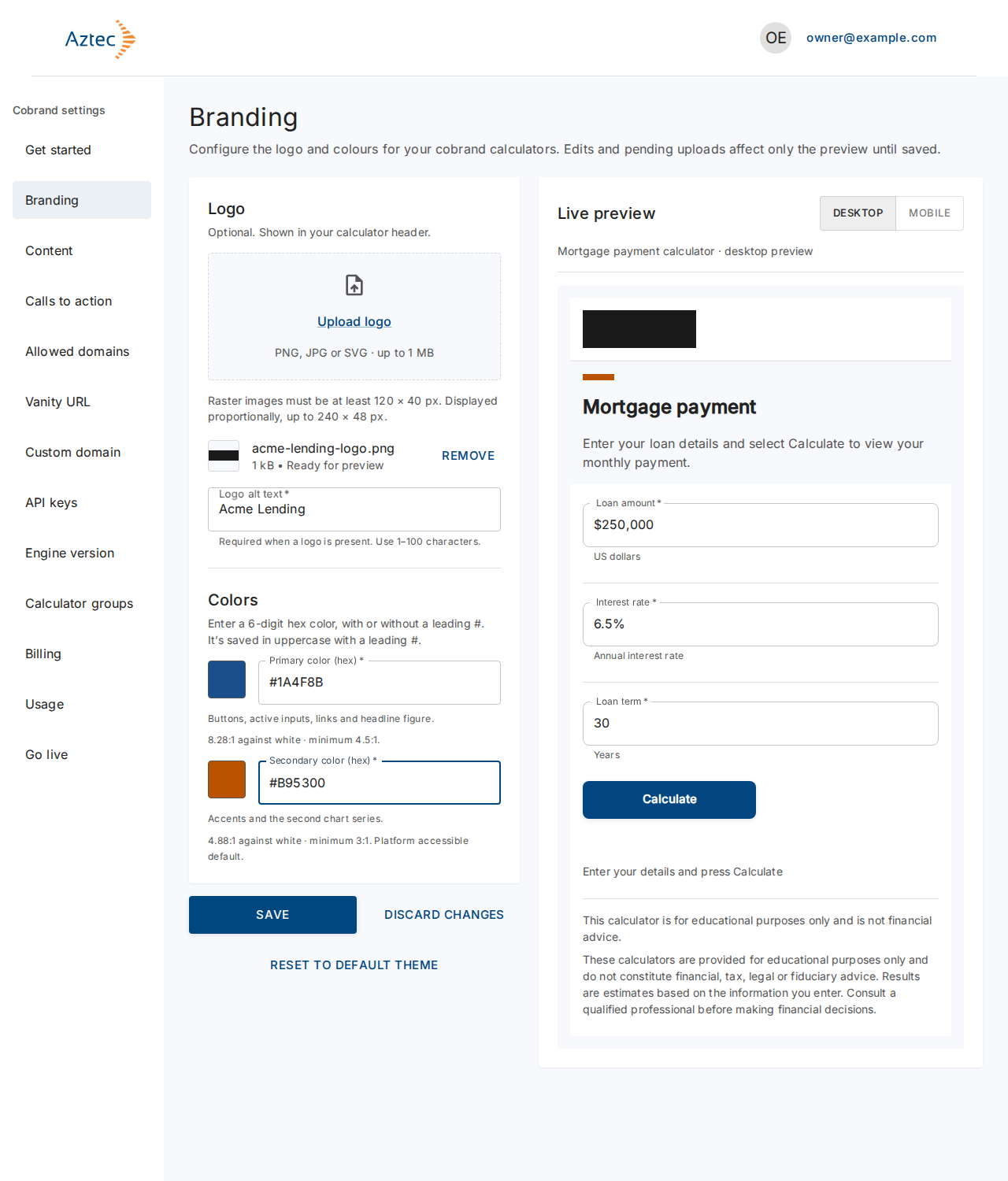
Under Logo, select Upload logo and choose your file. The portal shows the file with the status Ready for preview.
-
Enter Logo alt text (1–100 characters). A logo needs alt text, so screen reader users hear what the image shows.
-
Under Colors, enter a Primary color (hex) and a Secondary color (hex). Use the swatch beside each field to pick a color instead.
-
Check the Live preview. Switch between Desktop and Mobile to see both widths.
-
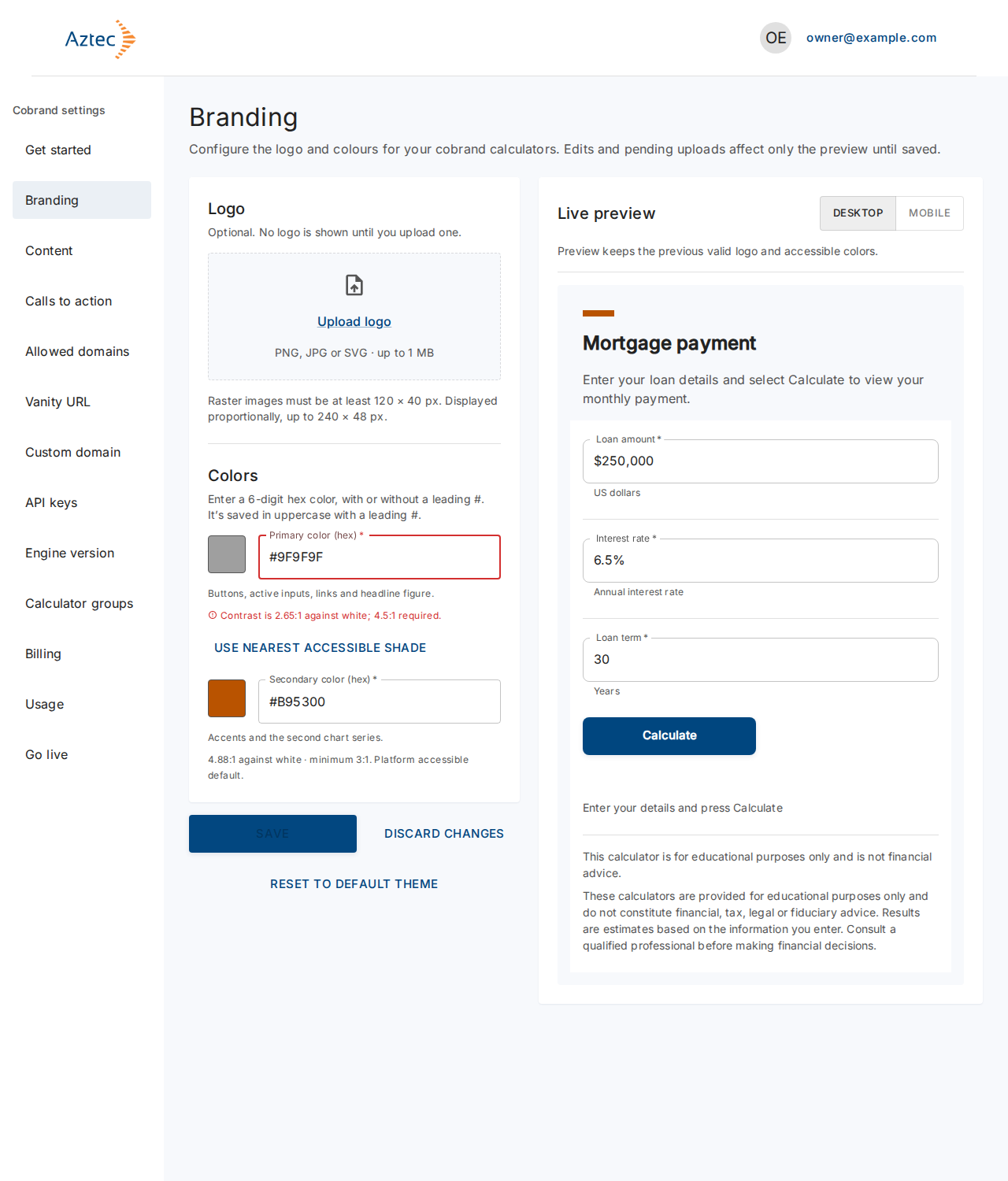
If a field reports low contrast, select Use nearest accessible shade, or enter a darker color.
-
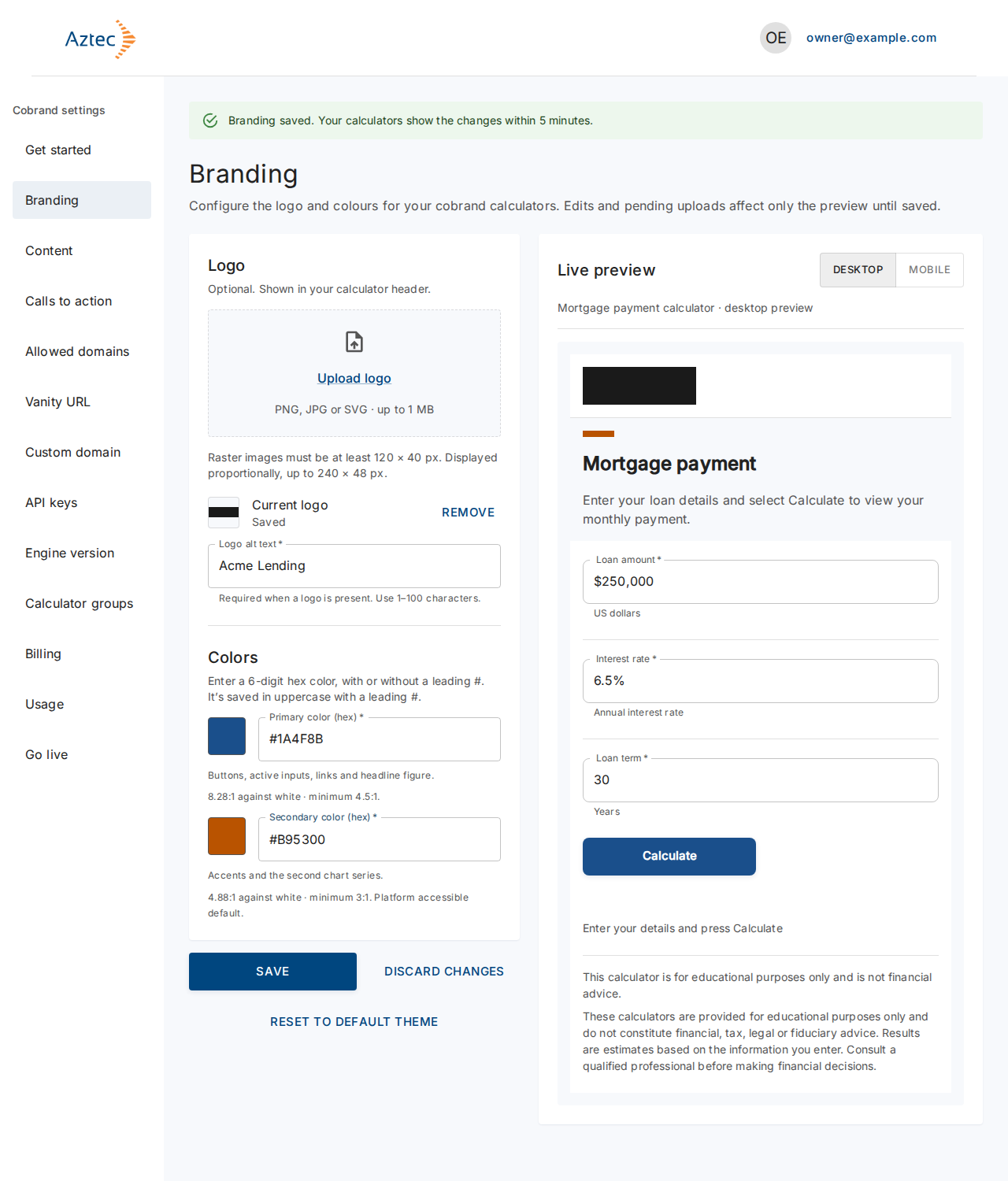
Select Save.
To go back to the platform look, select Reset to default theme, then confirm. To drop your edits before you save, select Discard changes.
What you see when it works
The portal shows Branding saved. The logo status changes to Saved.
Troubleshooting
- Contrast is … against white; 4.5:1 required. Your primary color is too light for text and buttons. Select Use nearest accessible shade. The secondary color needs a ratio of 3:1.
- Enter a 6-digit hex color, such as #1A4F8B. The field accepts only 6-digit hex values. Short forms such as
#FFFdon't work. - This file type isn't supported. Upload a PNG, JPG or SVG file.
- File too large. Use a file of 1 MB or less.
- Image too small. Use a raster image of at least 120 × 40 px.
- This SVG can't pass the safety check. Upload a PNG or JPG, or an SVG without scripts or external references.
- This logo upload has expired. Upload the logo again, then save. The portal keeps your other edits.
- A conflict message with a Reload button. Someone else saved branding first. Select Reload to load their version. This discards your edits.
- The portal couldn't save your branding. The portal keeps your edits. Try Save again.
- Leave without saving? You have unsaved edits. Select Stay to keep editing.