View your audit history
See who changed your cobrand settings and when.
Before you start
- Sign in to the portal as the owner of your account.
- Your account needs a cobrand, which you get when you sign up.
Steps
-
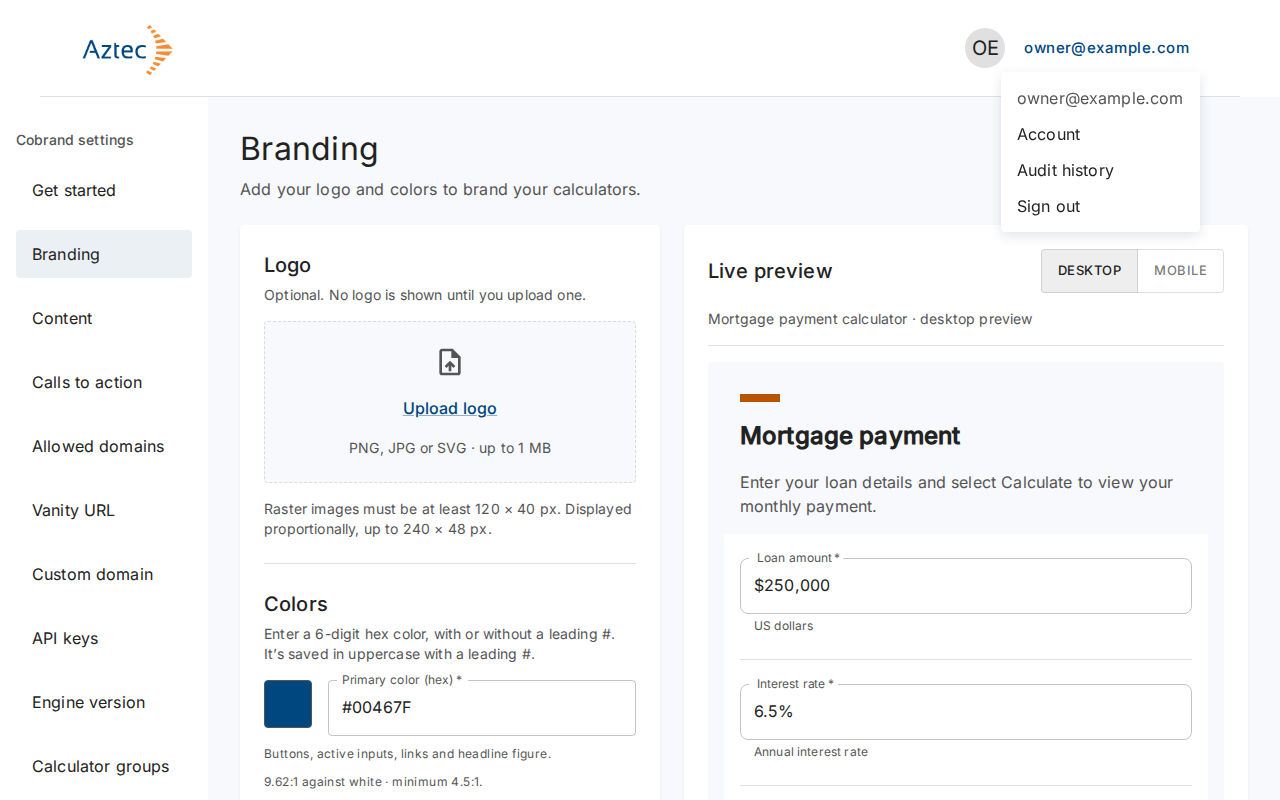
Select your email address at the top right of the portal to open the account menu.
-
Select Audit history.
-
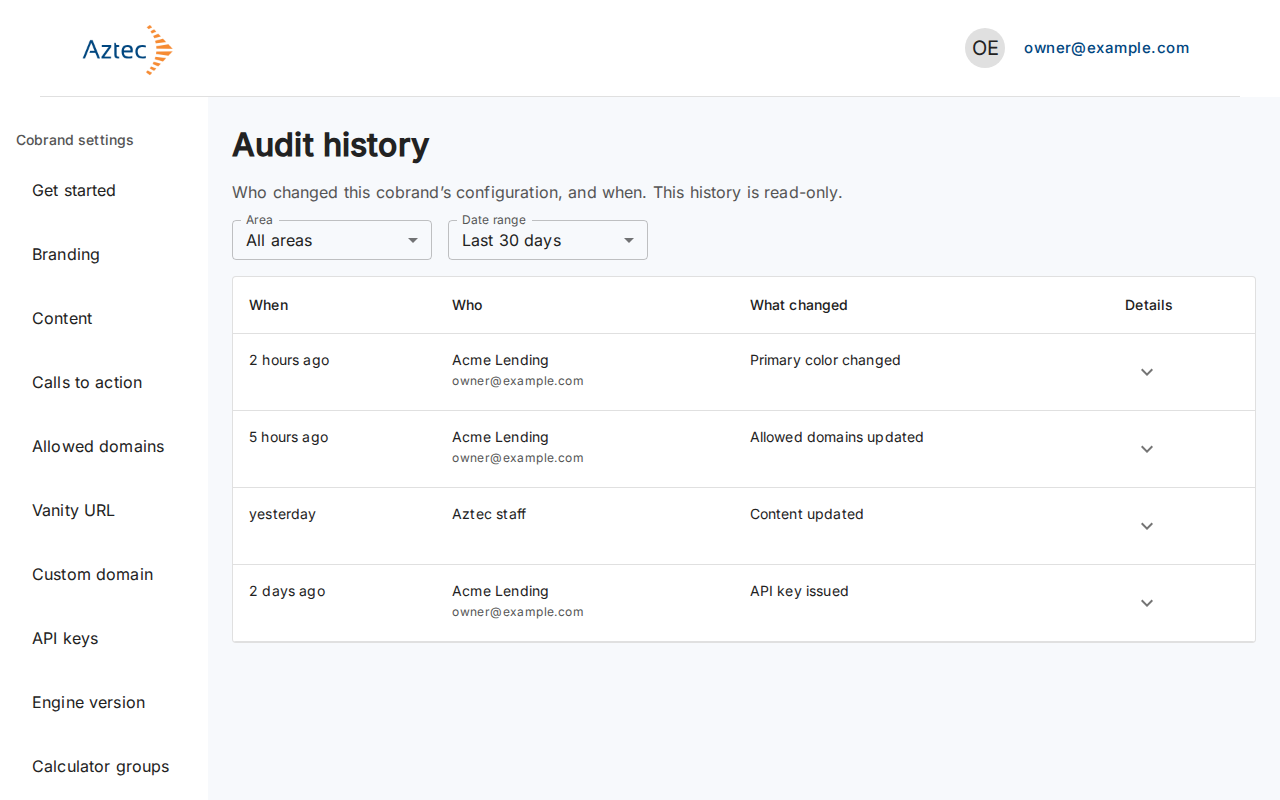
Read the table. Each row shows When, Who, What changed and Details, newest first.
-
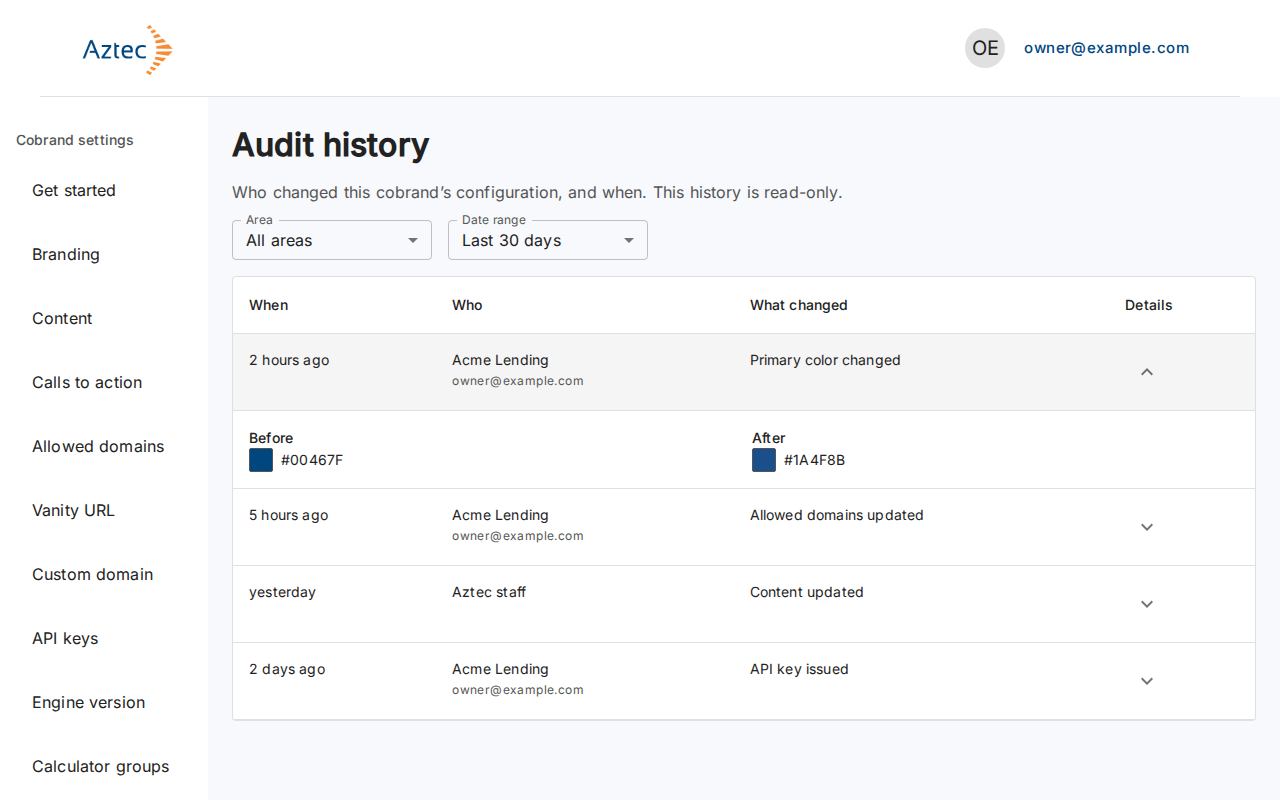
Select the arrow in the Details column to see the values before and after a change. Select it again to hide them.
-
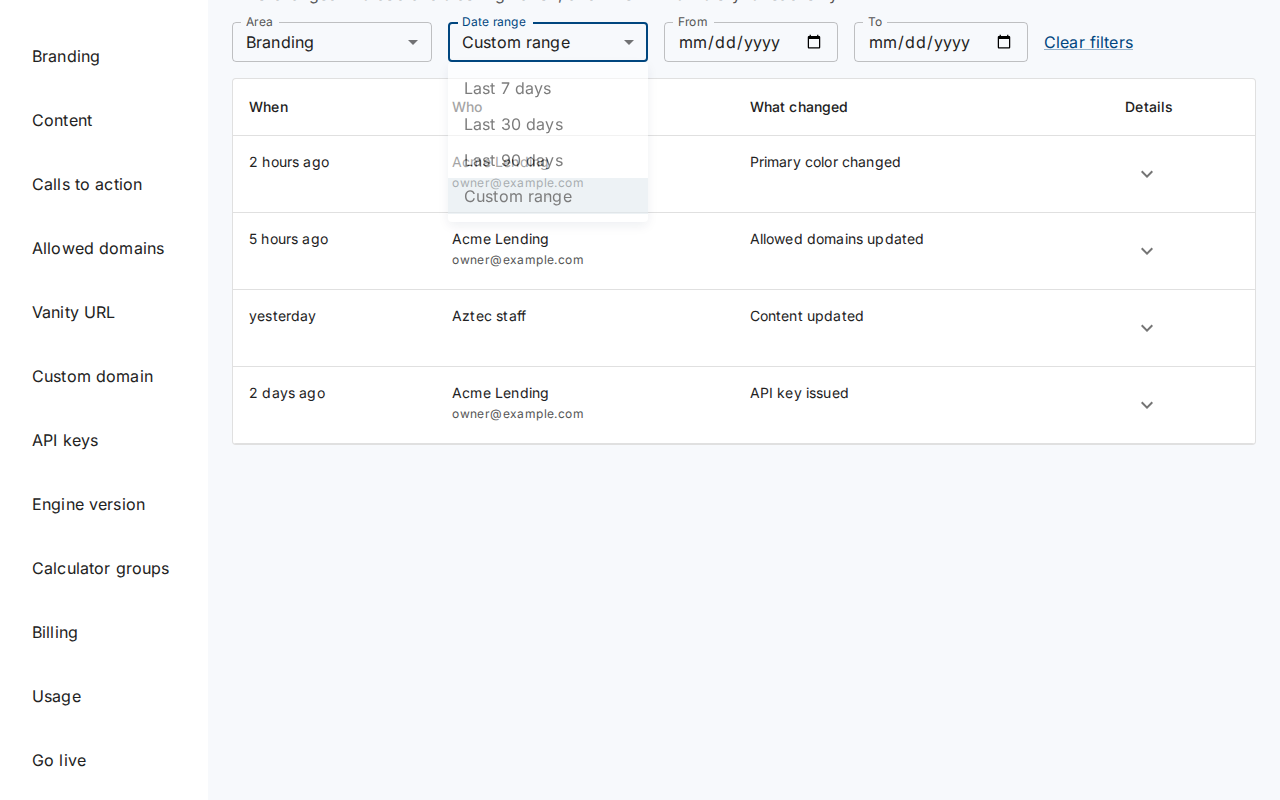
Narrow the list with the Area menu (for example Branding or API keys) and the Date range menu. The range defaults to Last 30 days. Choose Custom range to enter a From and To date.
-
Select Clear filters to go back to all areas and the last 30 days.
-
Select Load more at the end of the table to see older changes.
What you see when it works
The table lists each configuration change with the person who made it. The page is read-only.
Troubleshooting
-
No configuration changes yet: nothing has changed in the selected date range. Choose a longer date range to see older changes.
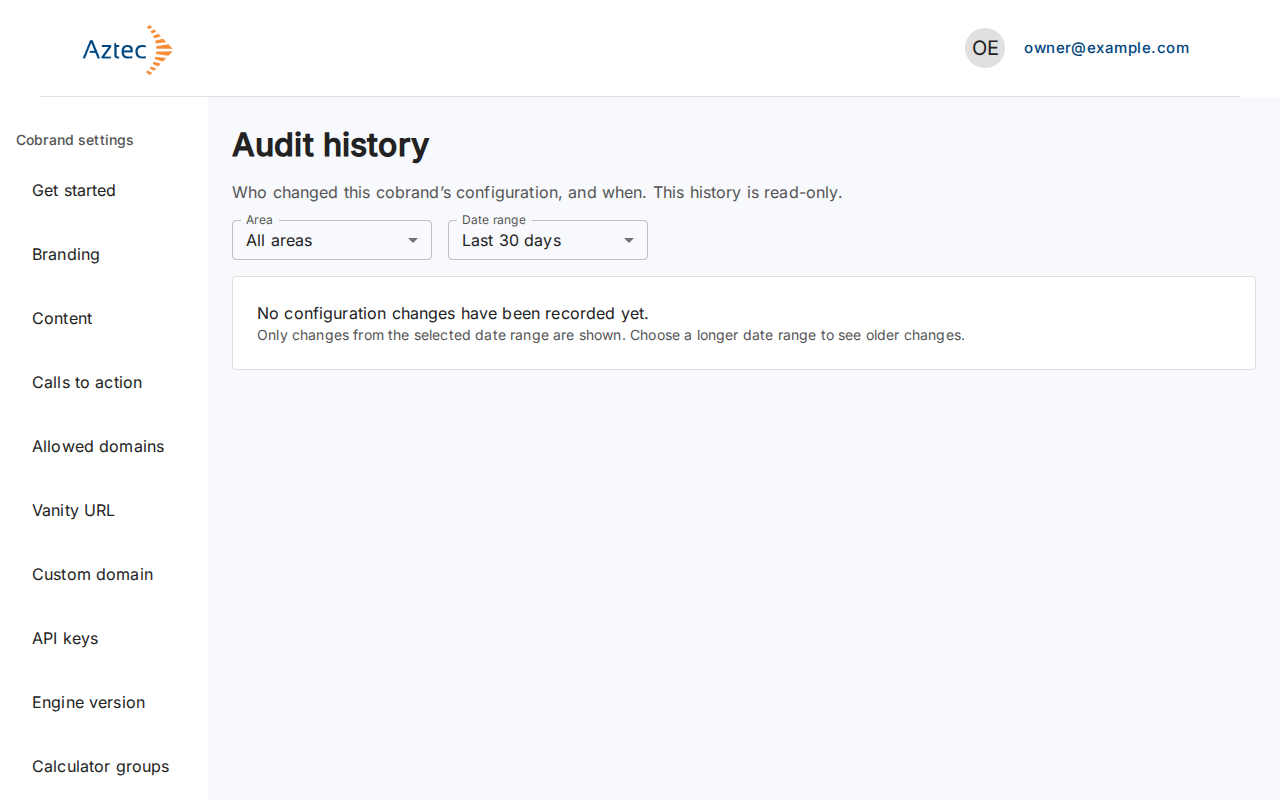
-
No changes match these filters. Select Clear filters.
-
The start date must be on or before the end date. Fix the From and To dates of your custom range.
-
We couldn’t load the audit history. Please try again. Select Retry. If it keeps failing, contact support.
-
You don’t have access to this cobrand’s audit history. Sign in with the account that owns the cobrand.