Set calls to action
Add one or two buttons below your calculator results that send visitors to your own pages.
Before you start
- Sign in to the customer portal as the account owner.
- Have a full
https://address ready for each button. - To see how often visitors click, see View call to action clicks.
Steps
-
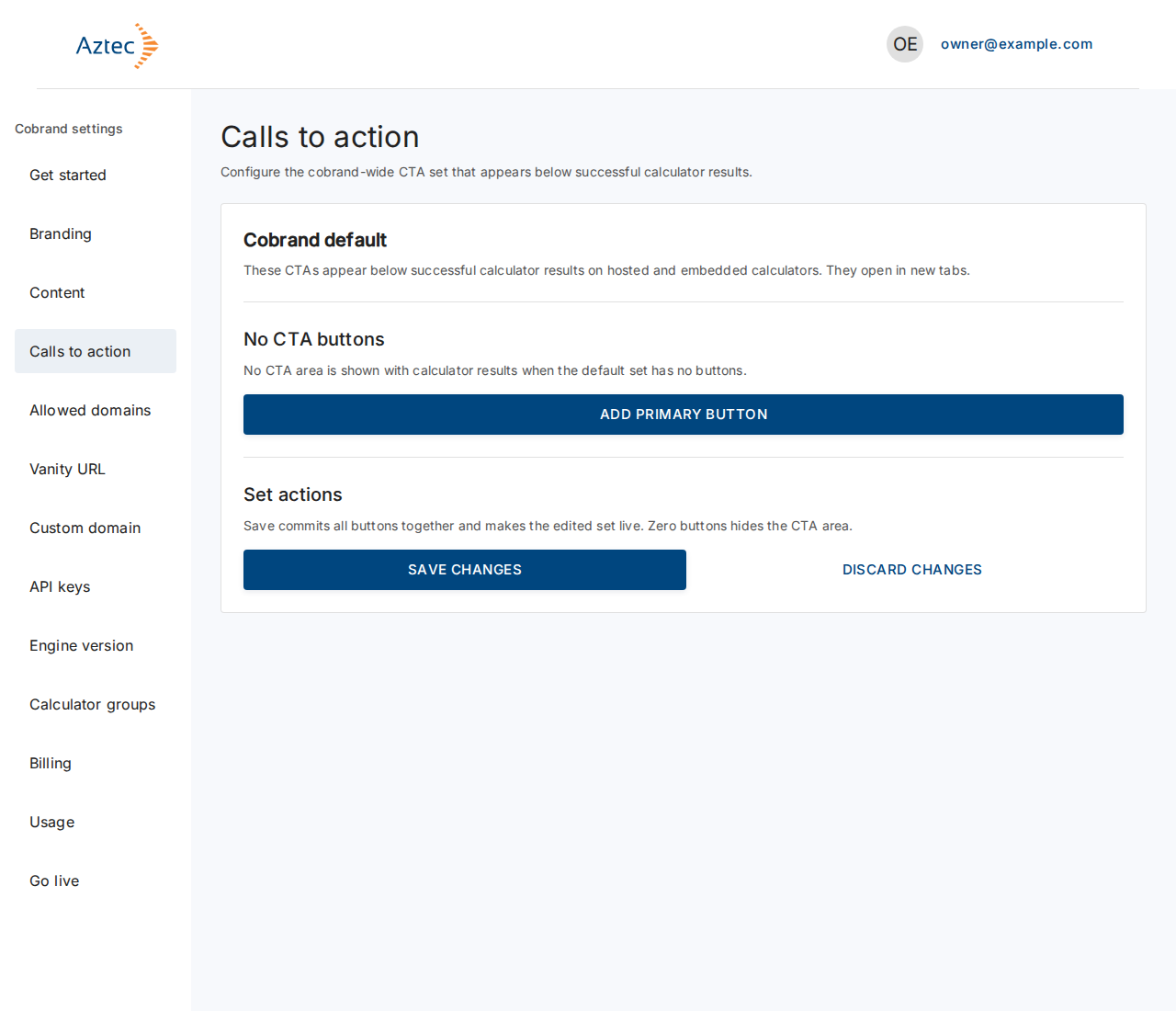
In the left menu under Cobrand settings, select Calls to action. A new account shows No CTA buttons.
-
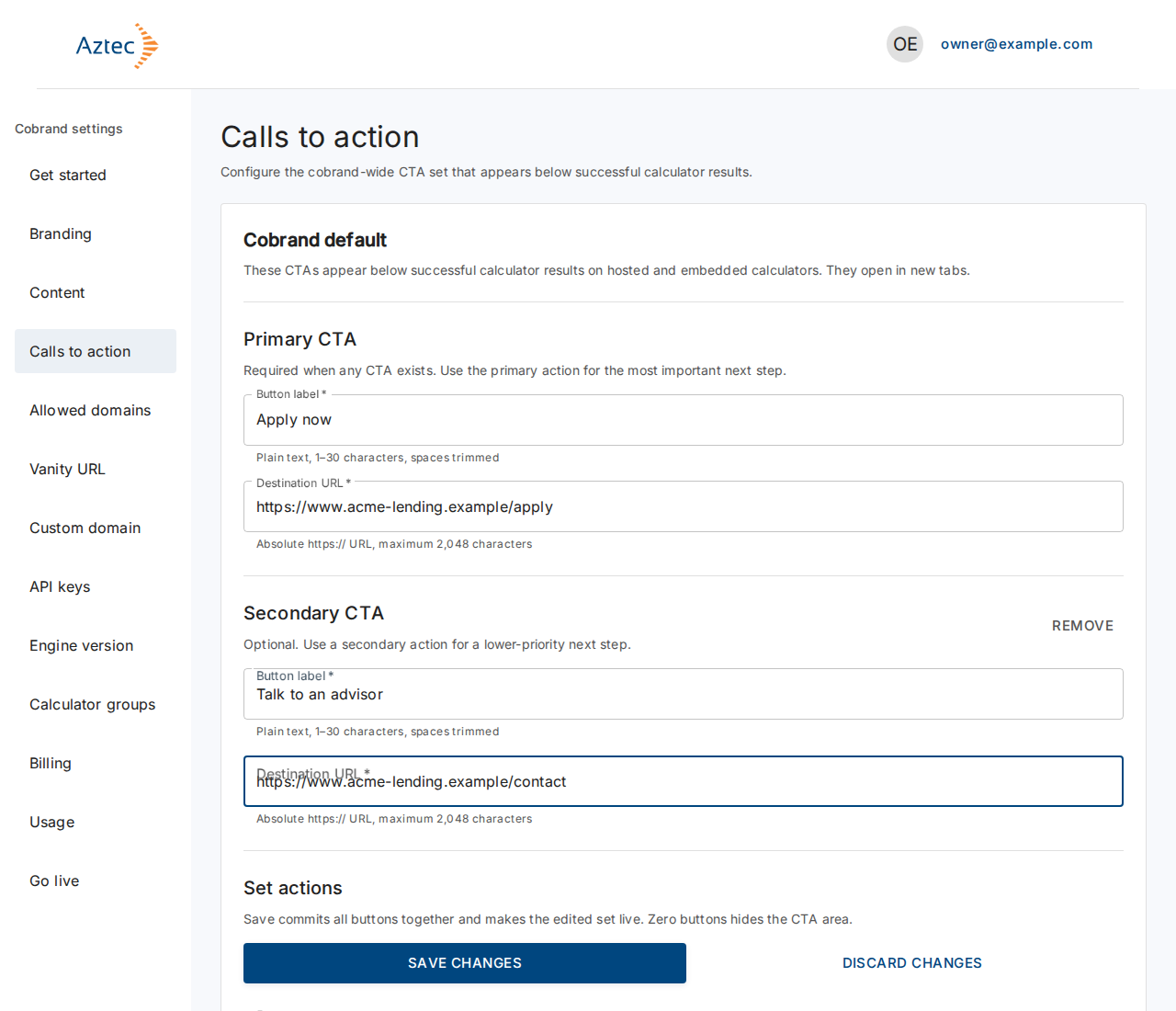
Select Add primary button. Enter a Button label (1–30 characters) and a Destination URL. The URL must start with
https://. -
To add a second button, select Add secondary button and fill in the same two fields. The secondary button is optional.
-
Select Save changes. The portal saves both buttons together.
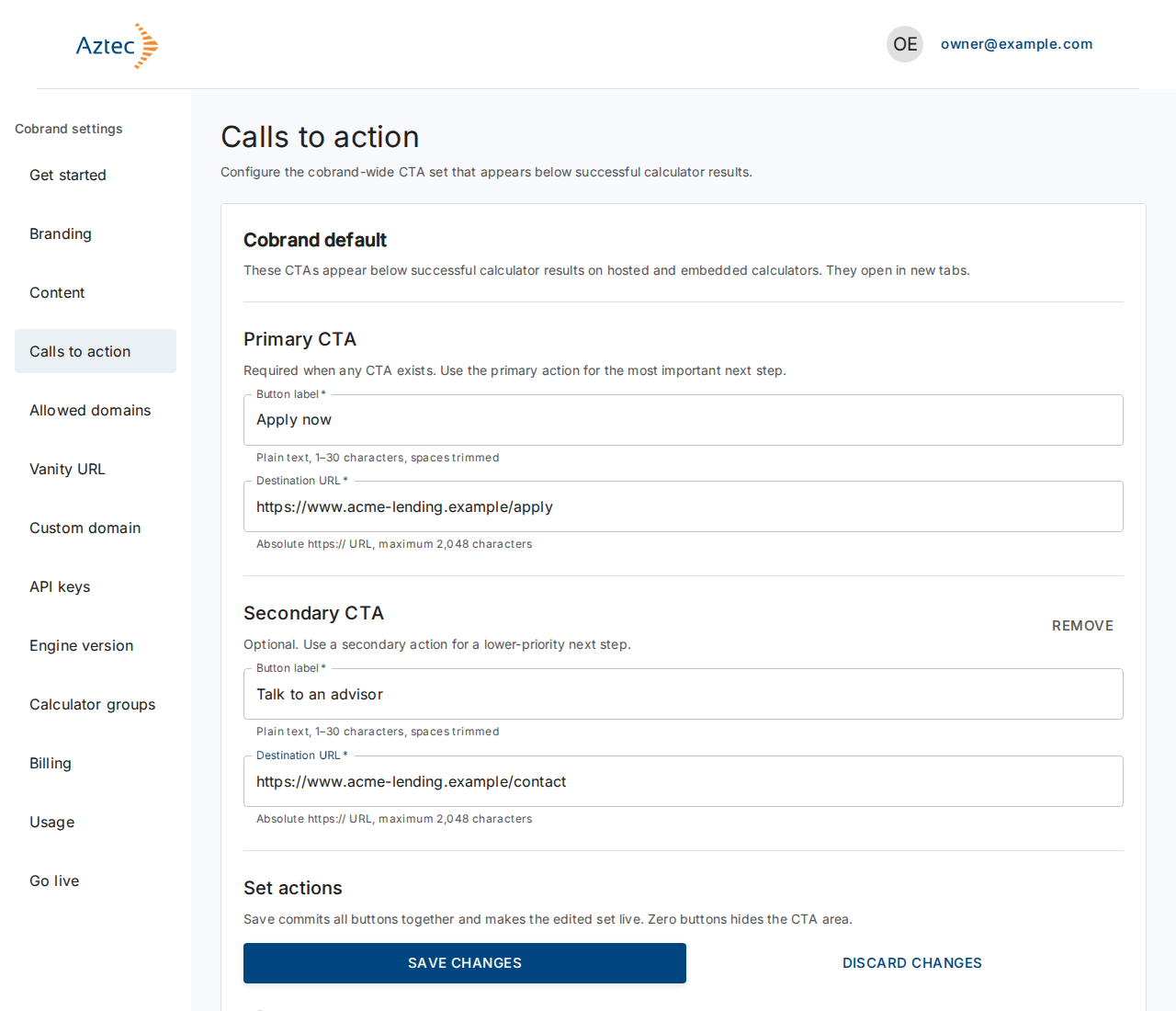
To remove the secondary button, select Remove in its section. To hide the buttons everywhere, select Remove all buttons, then Save changes. To drop your edits, select Discard changes.
What you see when it works
The portal shows Changes can take up to 5 minutes to appear on your calculators.
Troubleshooting
-
Enter a button label or Enter a destination URL. Each button needs both fields.
-
Use 30 characters or fewer for the button label. Shorten the label.
-
Use a URL that starts with https://. The portal rejects
http://addresses.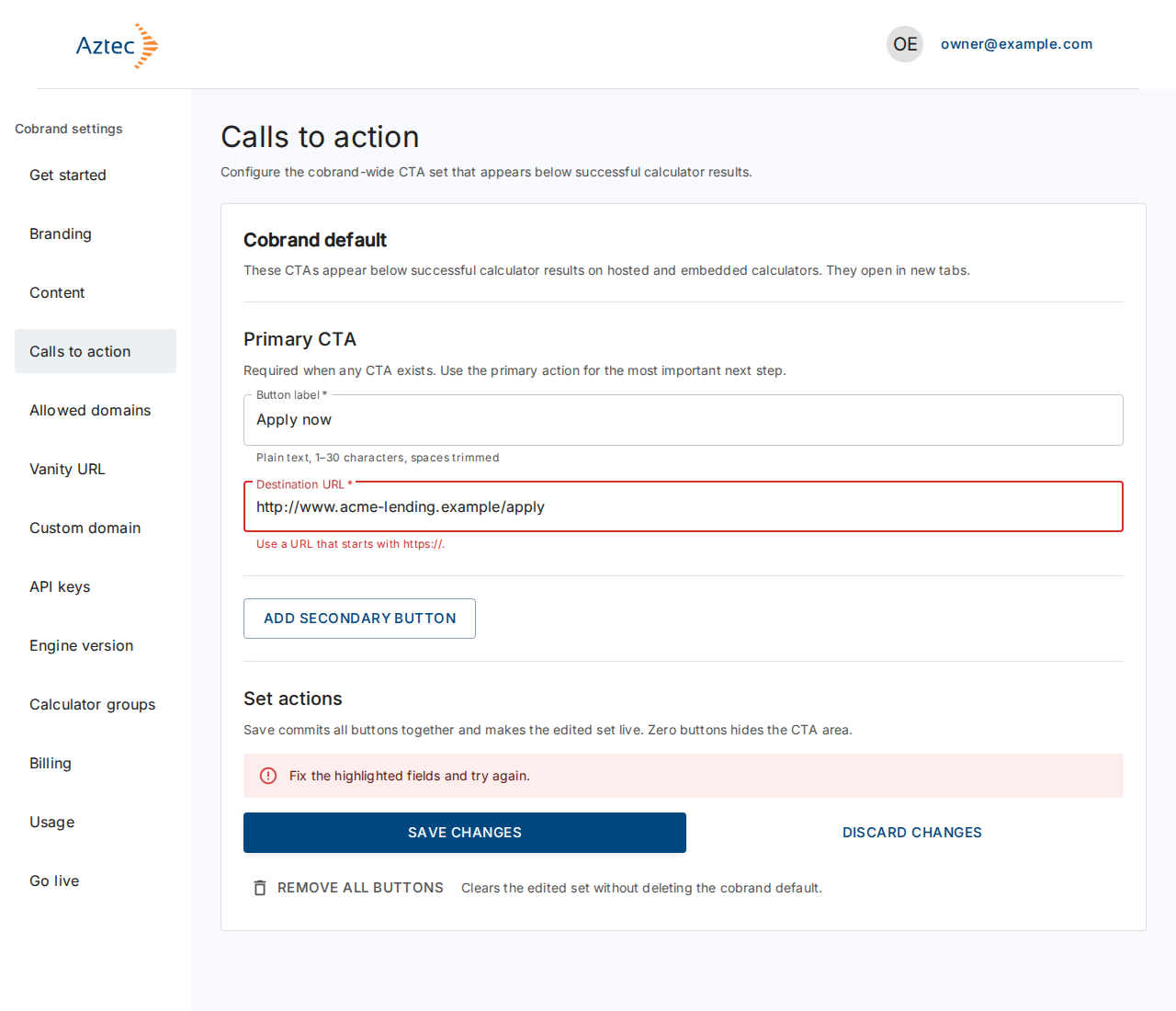
-
Add a primary button before adding a secondary button. Fill in the primary button first.
-
A conflict message with a Reload button. Someone else changed the set. Select Reload to load the latest version. This discards your edits.
-
We couldn't save your changes. Nothing changed. Try Save changes again.