Allowed domains
Choose the websites where your embedded calculators can load.
Before you start
- Sign in to the admin portal with your customer account. See Sign up and sign in.
- Set up your cobrand. Without one, the page tells you to set up your cobrand first.
- Know the website address where you plan to embed calculators, for example
www.acme-lending.example.
Steps
-
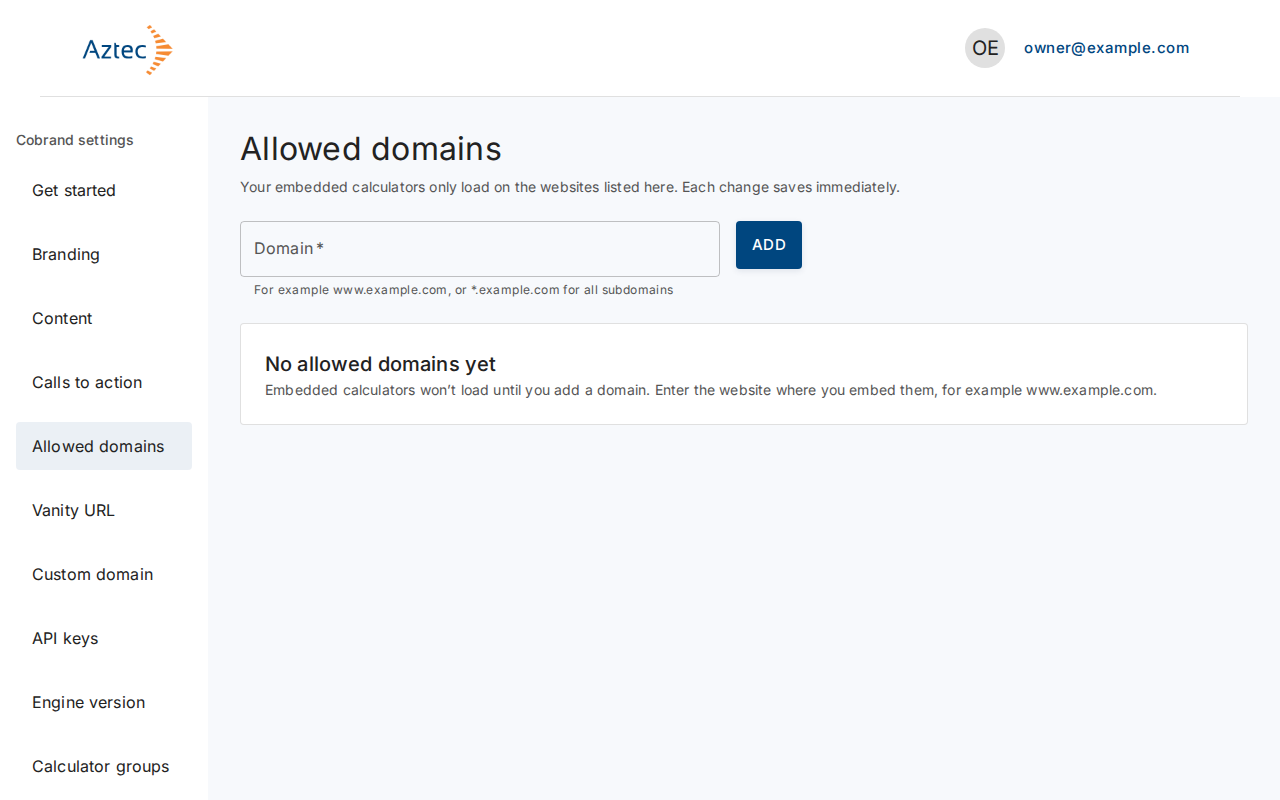
In Cobrand settings, select Allowed domains. A new account starts with No allowed domains yet.
-
In Domain, type the website address. Use
www.acme-lending.examplefor one site, or*.calculators.acme-lending.exampleto cover every subdomain.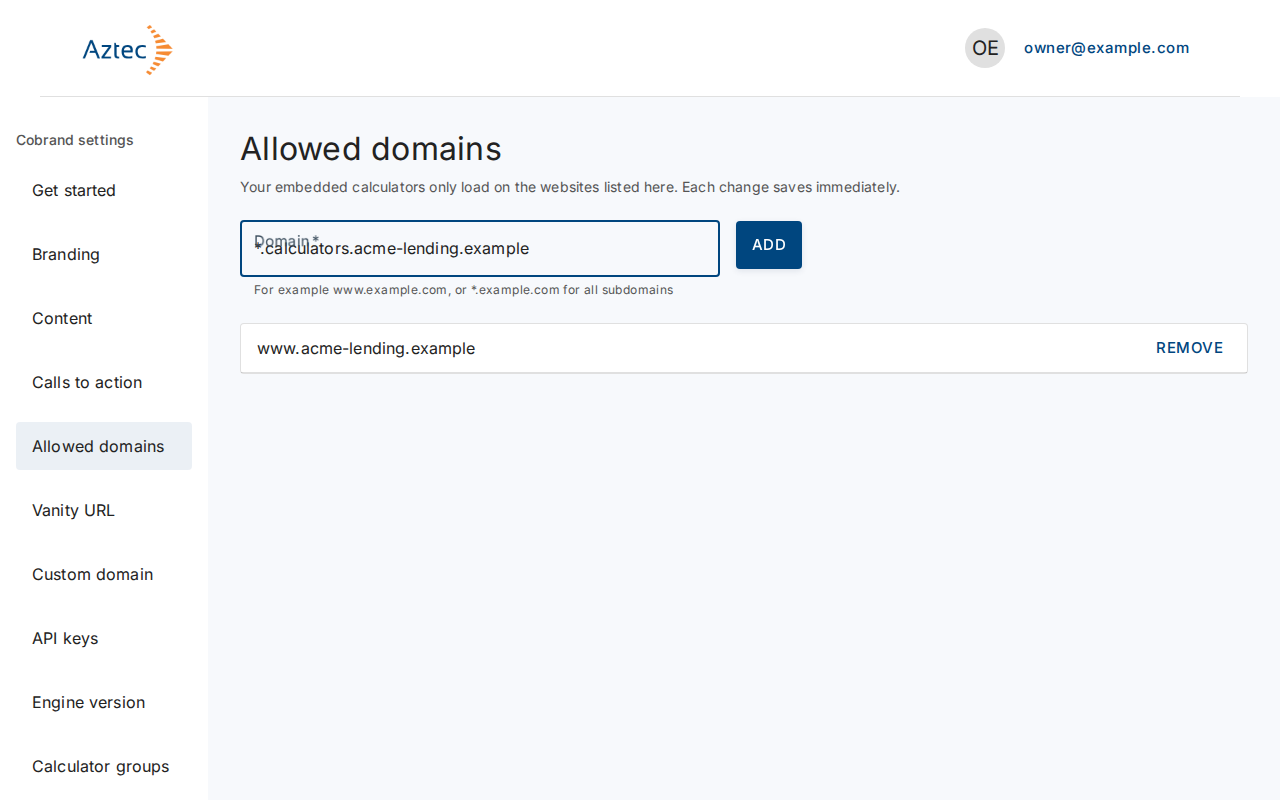
-
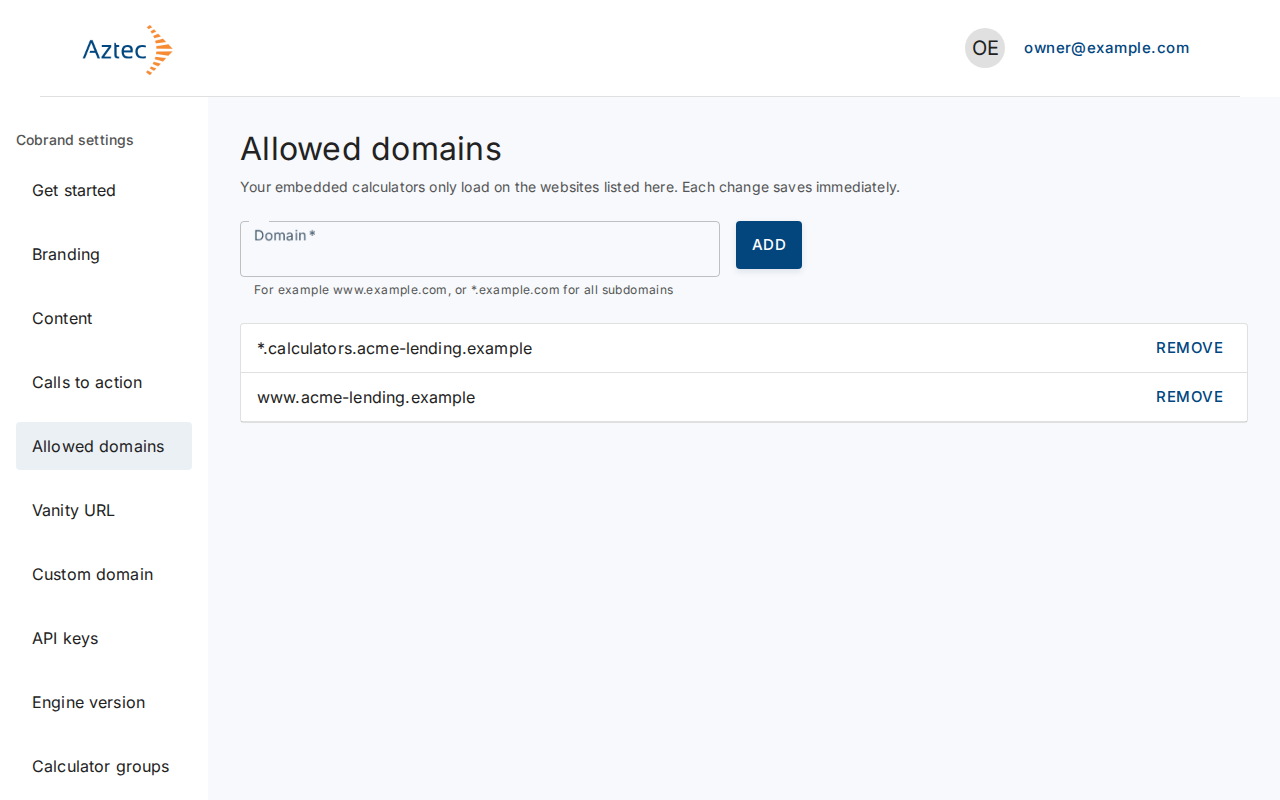
Select Add. The change saves straight away.
-
To stop a site loading your calculators, select Remove next to its domain.
What you see when it works
- The domain appears in the Allowed domains list, sorted alphabetically.
- The portal announces that it added or removed the domain.
Troubleshooting
-
Enter a domain, for example www.example.com. The Domain field was empty. Type an address and select Add again.
-
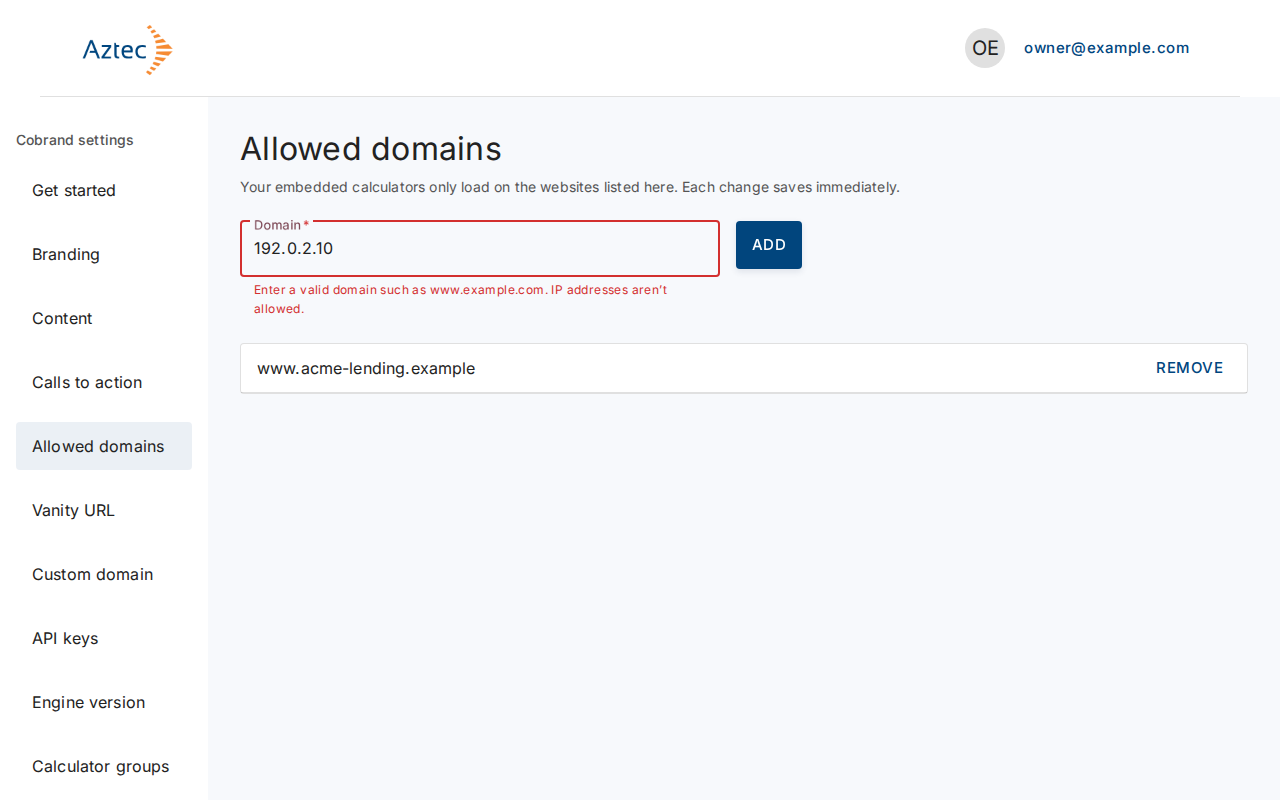
Enter a valid domain such as www.example.com. IP addresses aren’t allowed. Use a host name, not an IP address or a full URL.
-
*A wildcard must start the domain, for example .example.com. Put
*.at the start and nowhere else. -
This domain is already on your list. Nothing to do: the domain is already allowed.
-
You can have up to 50 allowed domains. Remove one to add another. Remove a domain you no longer use.
-
A red save error appears above the field. Select Add or Remove again.
-
We couldn’t load your allowed domains. Select Try again.