Put your calculators live
Copy the embed snippet, hosted links and API details you need to show your calculators to customers.
Before you start
- Sign in to the portal as the owner of your account.
- Pay for at least one calculator group. See Group purchase checkout.
- Add the domain of the site that will show the calculators. See Allowed domains.
Steps
-
In the left navigation, select Go live.
-
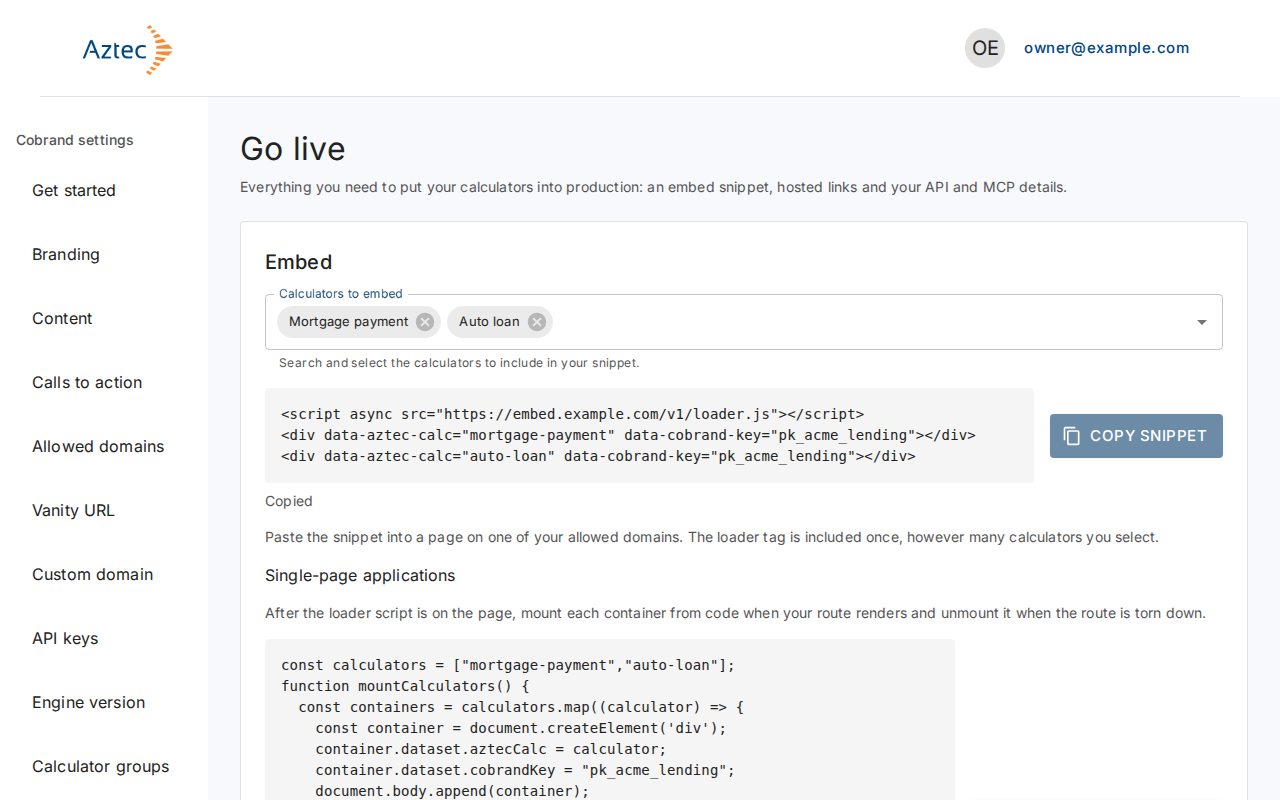
Under Embed, open Calculators to embed and select the calculators you want. The snippet updates as you choose.
-
Select Copy snippet and paste it into a page on one of your allowed domains. The loader tag appears once, however many calculators you select. For a single-page application, select Copy SPA mount code instead.
-
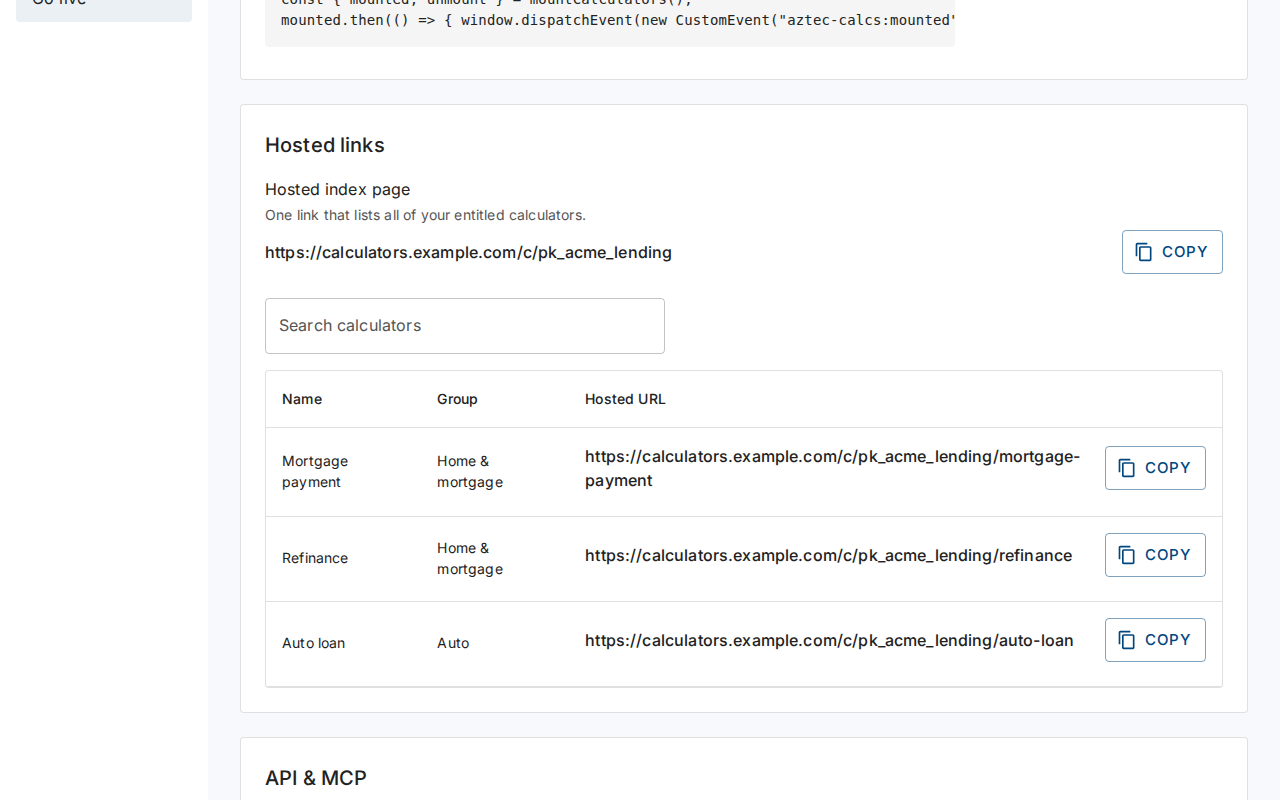
Under Hosted links, select Copy next to the Hosted index page link, or next to the Hosted URL of one calculator. Use Search calculators to find one. A Vanity URL column appears if you set a vanity URL.
-
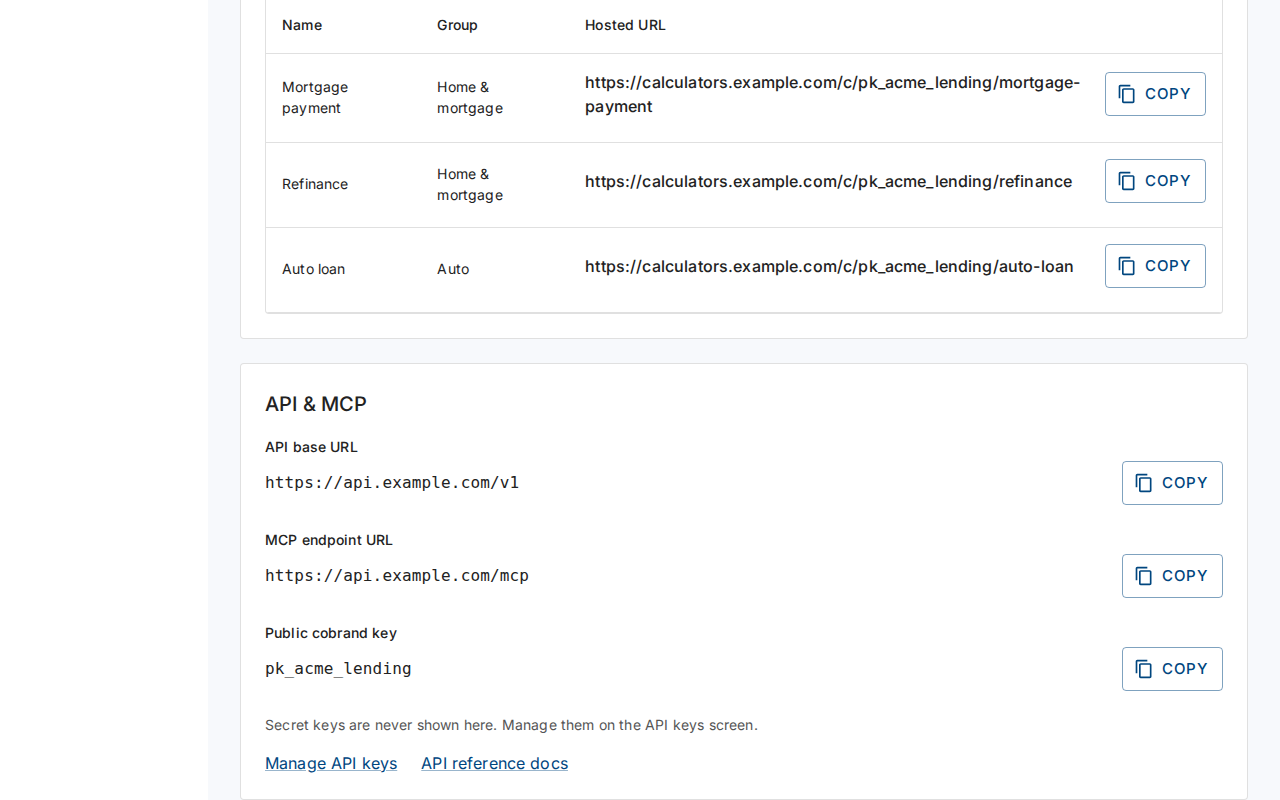
Under API & MCP, copy the API base URL, MCP endpoint URL or Public cobrand key. Select Manage API keys to create a secret key, or API reference docs to read the API reference.
What you see when it works
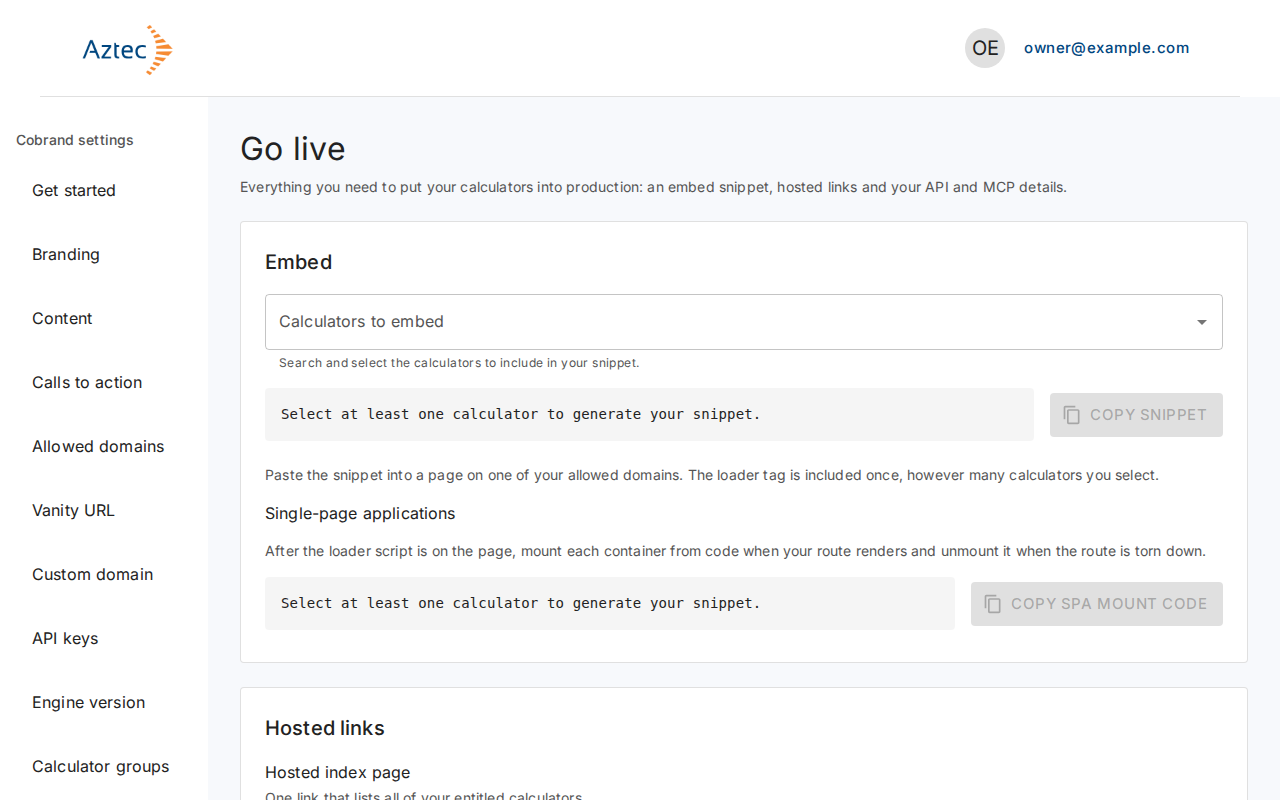
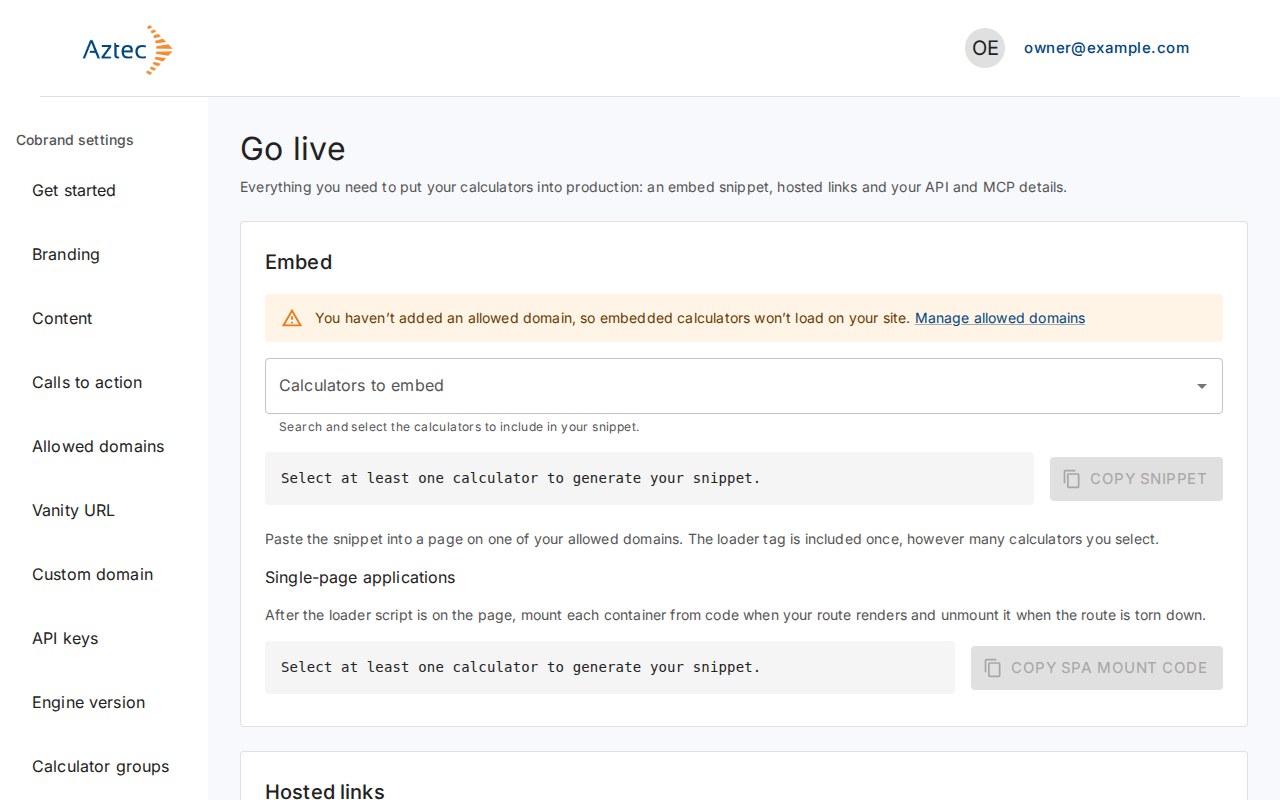
Each Copy button changes its status line to Copied. The Go live step on the Get started page then shows Complete. Before you copy, the Copy snippet button stays disabled and the box says to select at least one calculator.
Troubleshooting
-
You haven’t added an allowed domain, so embedded calculators won’t load on your site. Select Manage allowed domains and add your site.
-
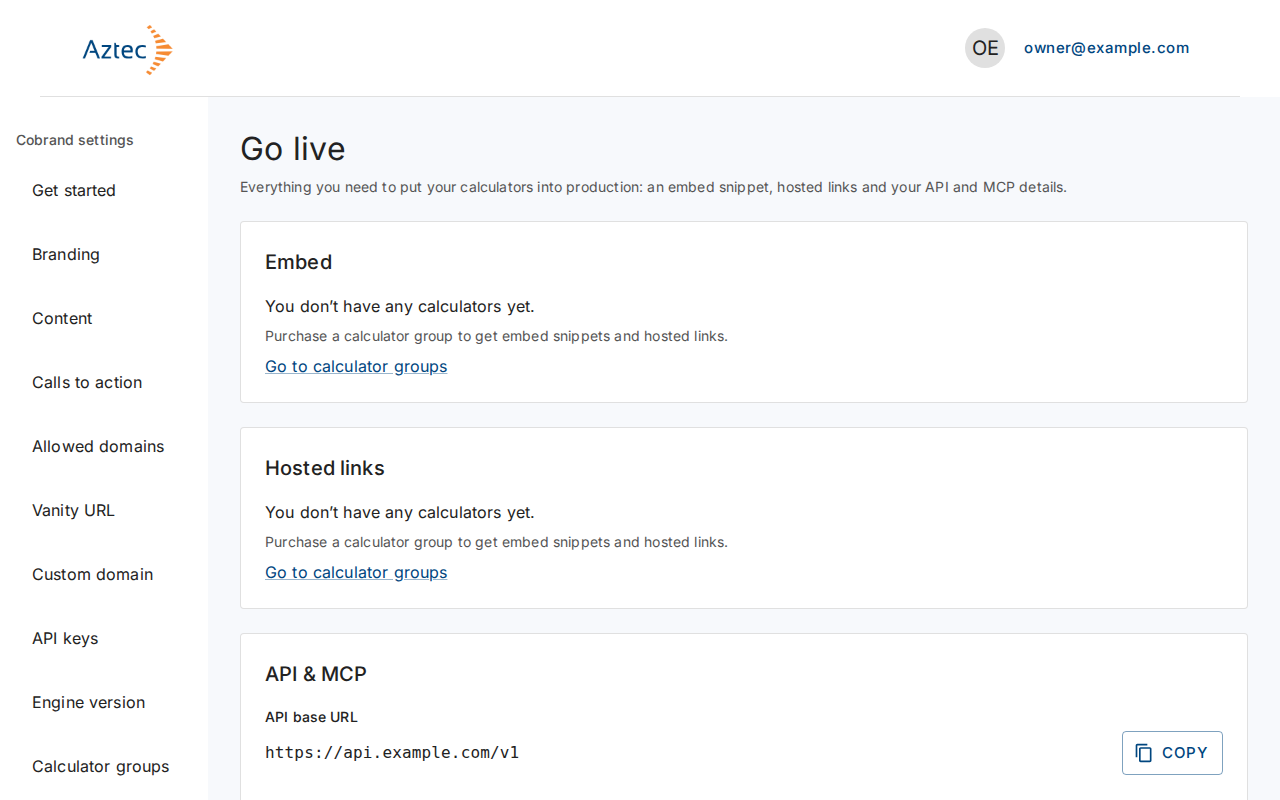
You don’t have any calculators yet. Select Go to calculator groups and purchase a group.
-
Copying does not work. The portal selects the text. Press Ctrl+C (Cmd+C on a Mac) to copy it.
-
We couldn’t load your go-live details. Please try again. Select Retry.
-
Secret API keys never appear on this page. Create or revoke them under API keys.