Customize calculator content
Change the input labels, default values and result labels of your calculators.
Before you start
- Sign in to the customer portal as the account owner.
- Buy at least one calculator group. The Calculators tab lists only the calculators in your plan.
- To change the disclaimer or the default language, see Set the disclaimer and default language.
Steps
-
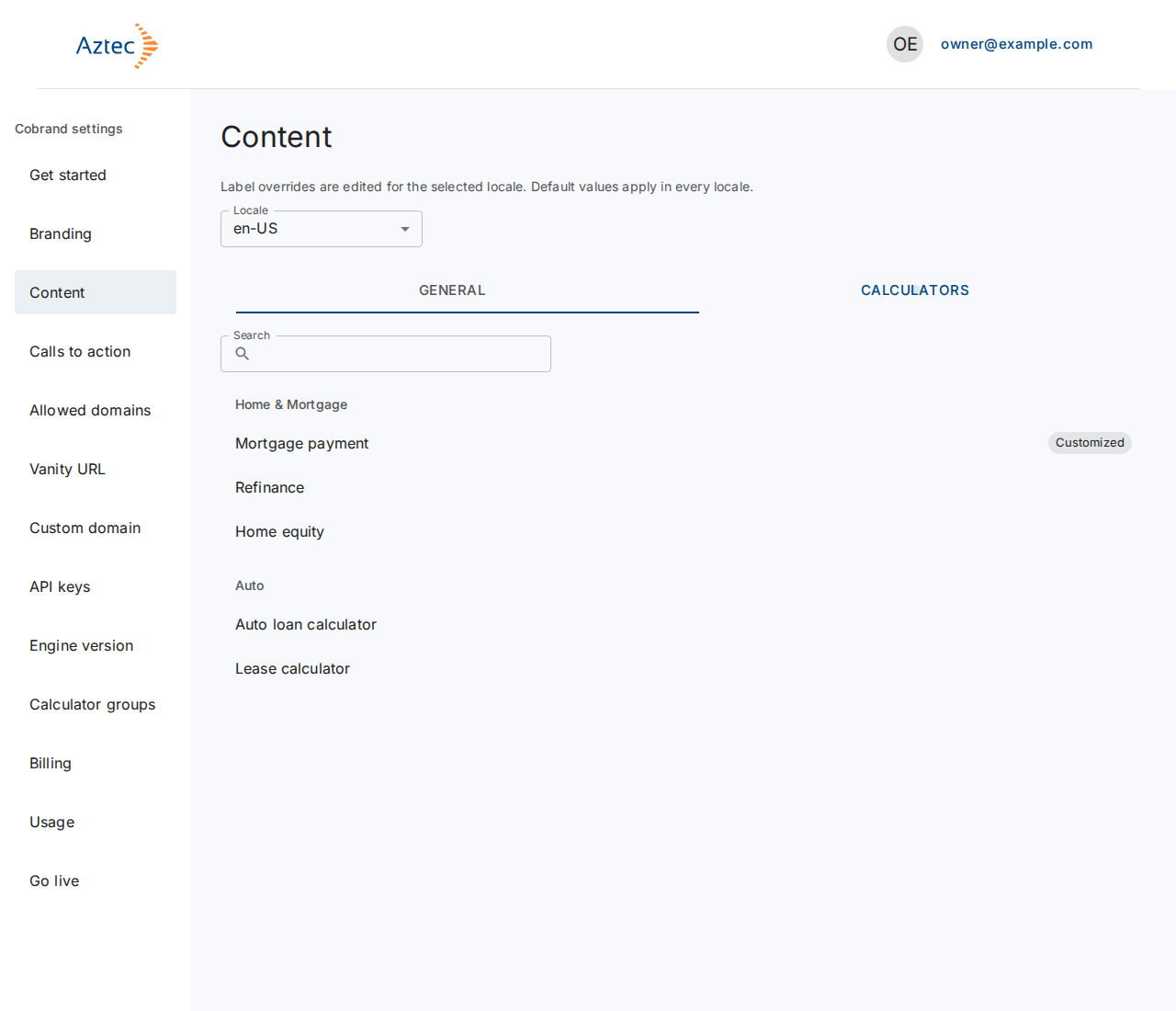
In the left menu under Cobrand settings, select Content, then open the Calculators tab.
-
Use Search to find a calculator, then select it. Calculators with edits show Customized.
-
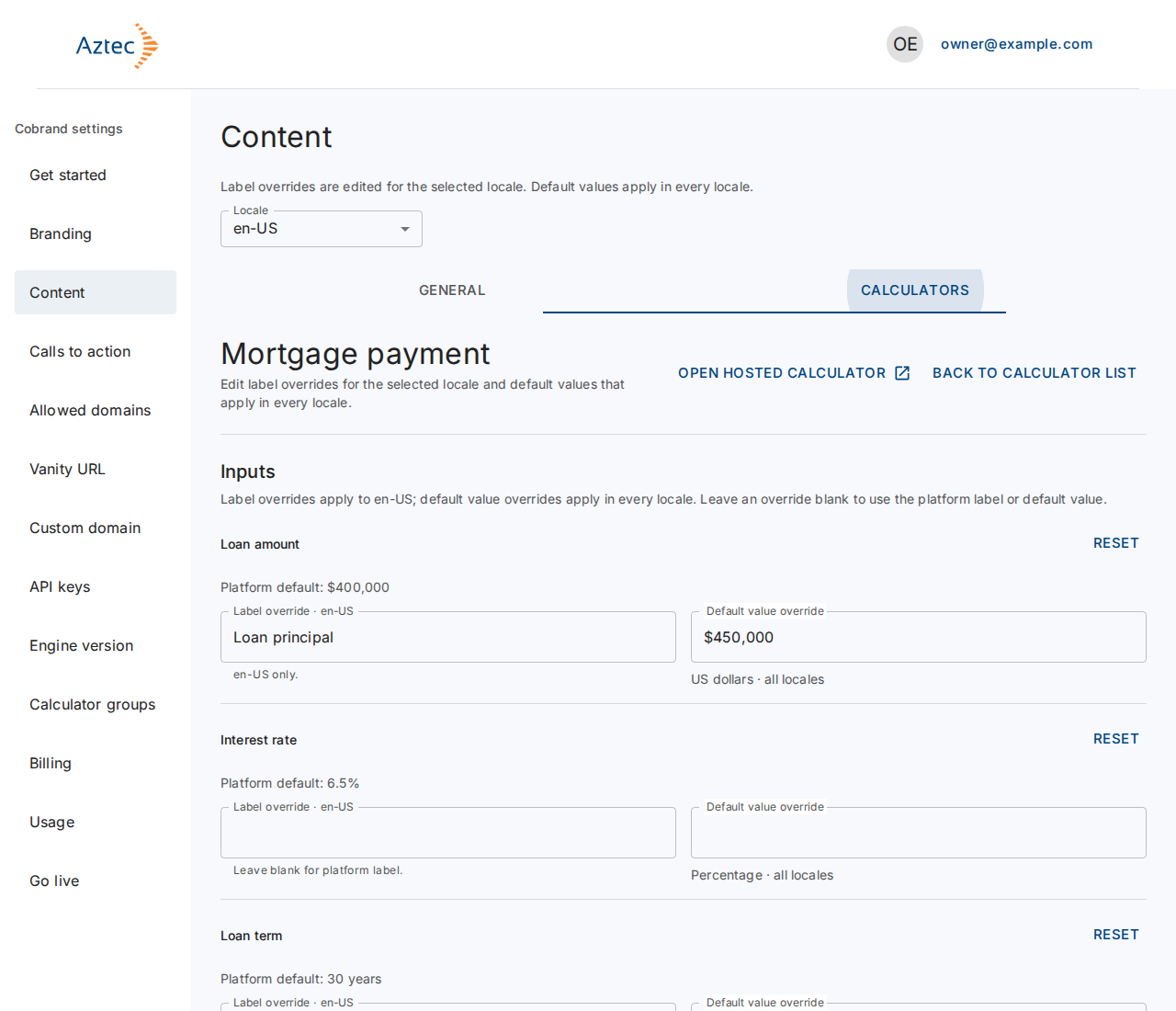
Pick the Locale to edit. Label overrides apply to that locale only. Default values apply in every locale.
-
Under Inputs, change what you need for each input:
- Label override: the text above the input. Leave it blank to keep the platform label.
- Default value override: the value the calculator starts with. It must stay within the range the calculator allows.
-
Under Result labels, change the names of the results if you want to.
-
Select Save.
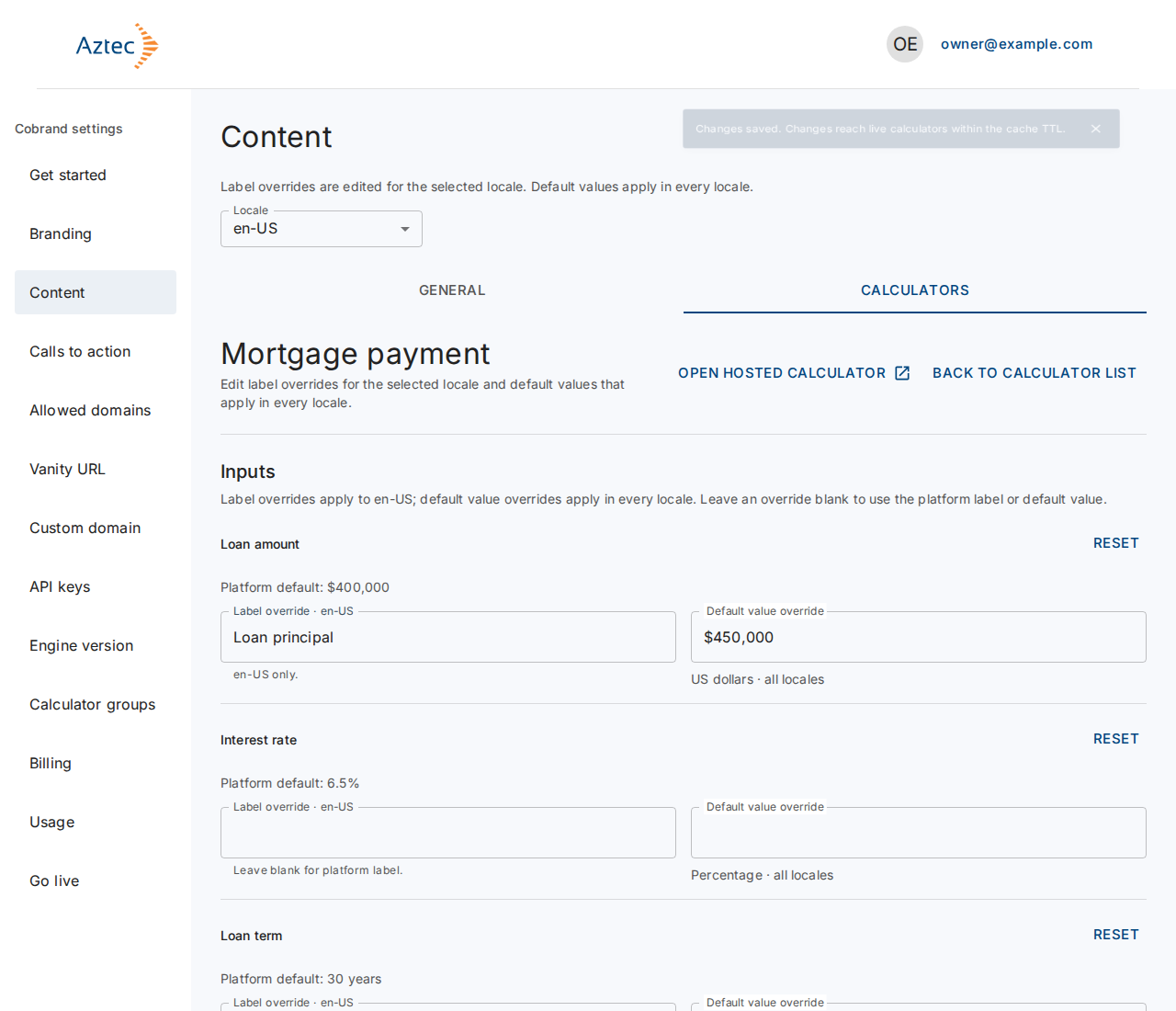
To undo one input, select Reset beside it. To remove every override on the calculator in all locales, select Reset all, then confirm. Select Open hosted calculator to see the result in a new tab.
What you see when it works
The portal shows Changes saved.
Troubleshooting
-
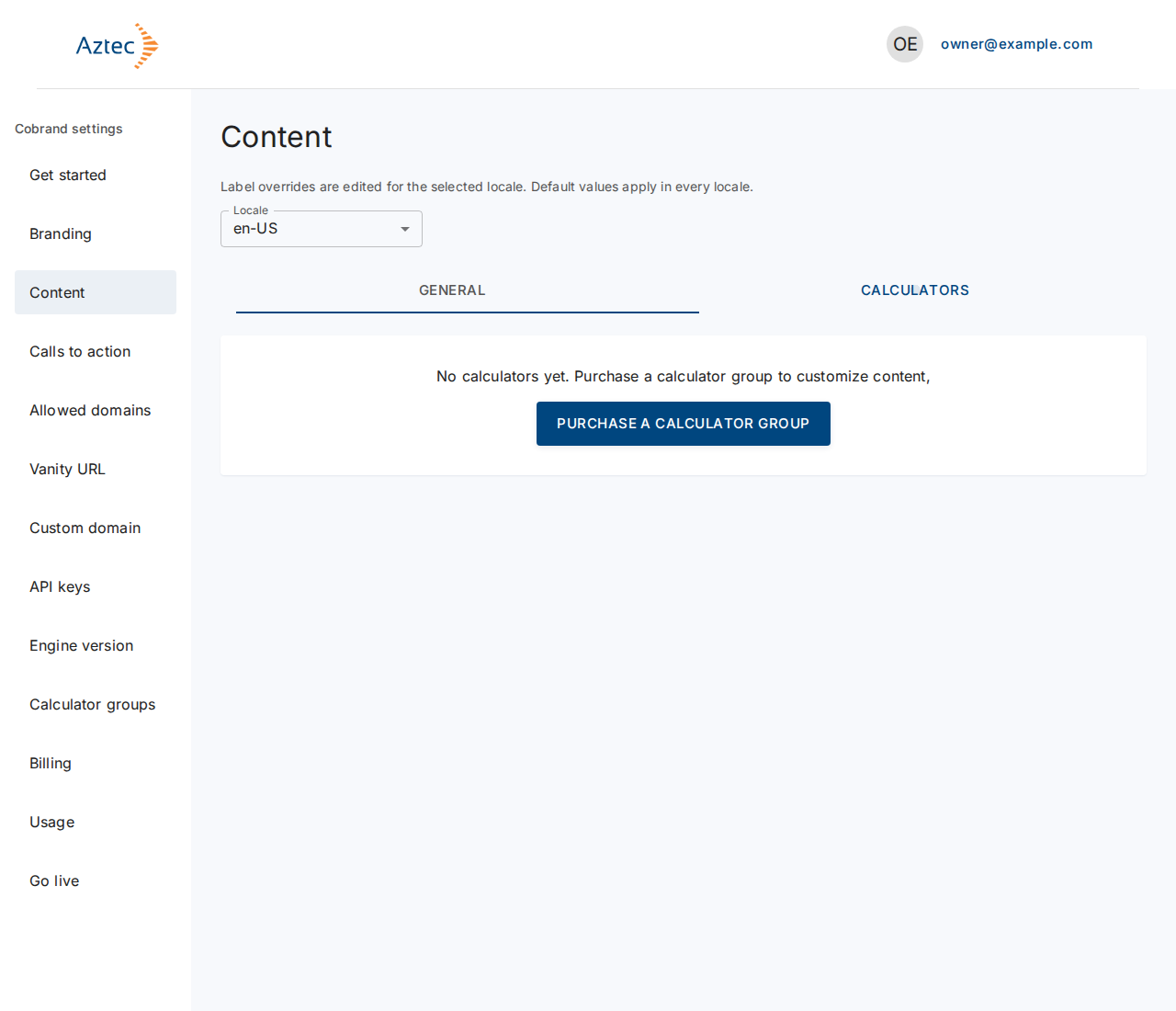
No calculators yet. Your account has no calculator group. Select Purchase a calculator group.
-
No calculators match your search. Clear the Search box.
-
The portal couldn't load the content. Select Retry.
-
Use 60 characters or fewer. Shorten the label. Labels take plain text only, with no HTML or markdown.
-
Enter a value from … to …. The default value falls outside the calculator's range. Enter a value in range.
-
Fix the errors above to save. Save stays off until every field is valid.
-
A conflict message with a Reload button. Someone else saved first. Select Reload to load the latest version. This discards your unsaved edits.
-
This calculator is no longer part of your plan. The calculator group has ended. Go back to the list.
-
The portal couldn't save your changes. The portal keeps your edits. Try Save again.
-
Leave without saving? You have unsaved edits. Select Keep editing or Discard and leave.