API key management
Create and revoke the secret keys that your systems use to call the calculation API, and find your public cobrand key.
Before you start
- Sign in to the admin portal with your customer account. See Sign up and sign in.
- Set up your cobrand. The page loads your keys for that cobrand.
- Plan where to store the secret key. Keep it on your back end, never in a web page.
Steps
-
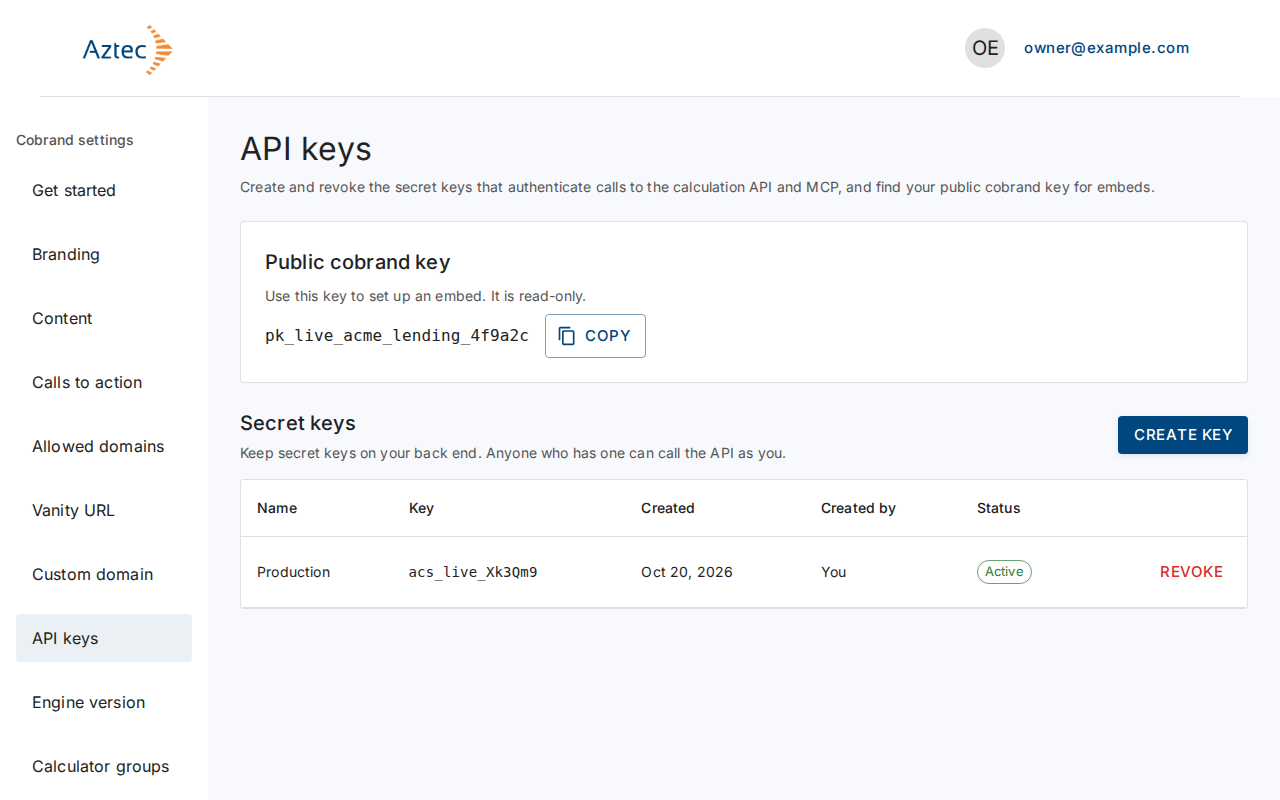
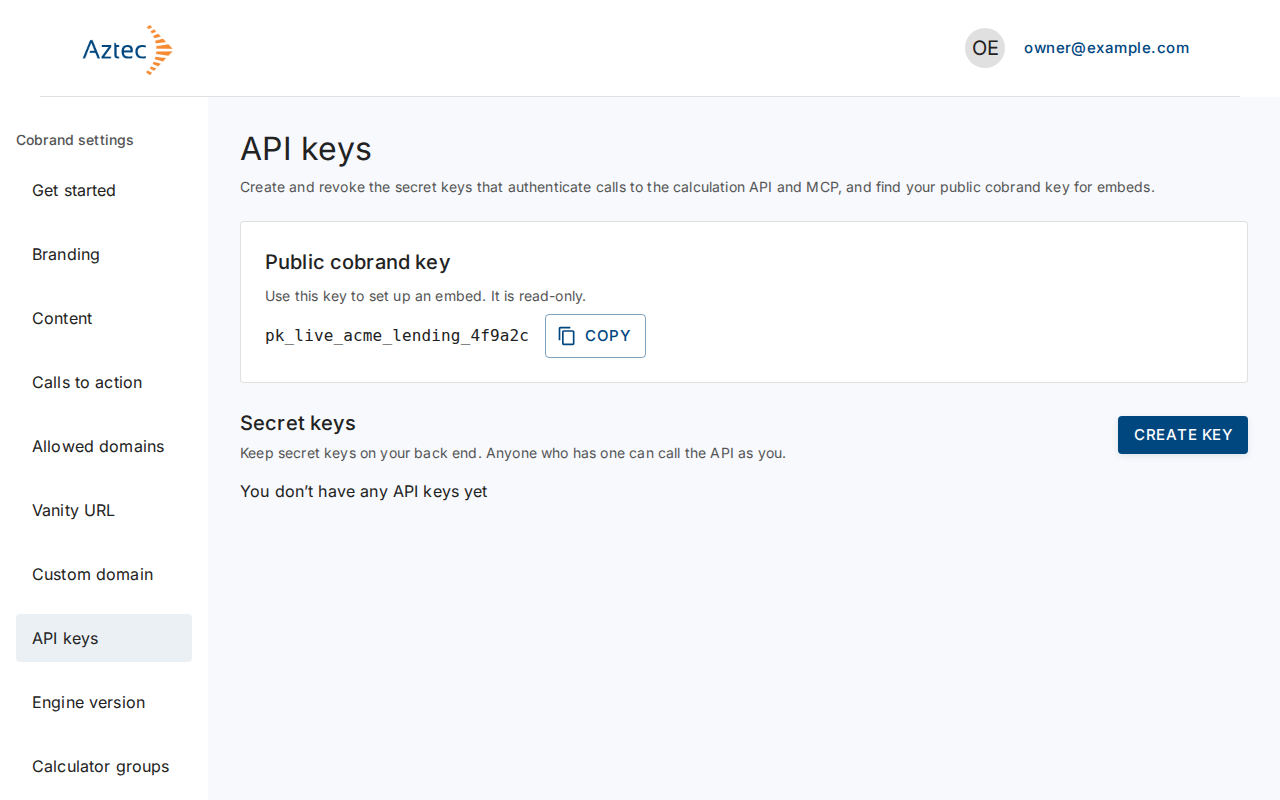
In Cobrand settings, select API keys. The Public cobrand key panel shows your read-only public key. The Secret keys section lists your keys.
-
Select Create key.
-
In Key name, type a name of up to 50 characters. Use letters, numbers, spaces, hyphens and underscores, for example
Billing service.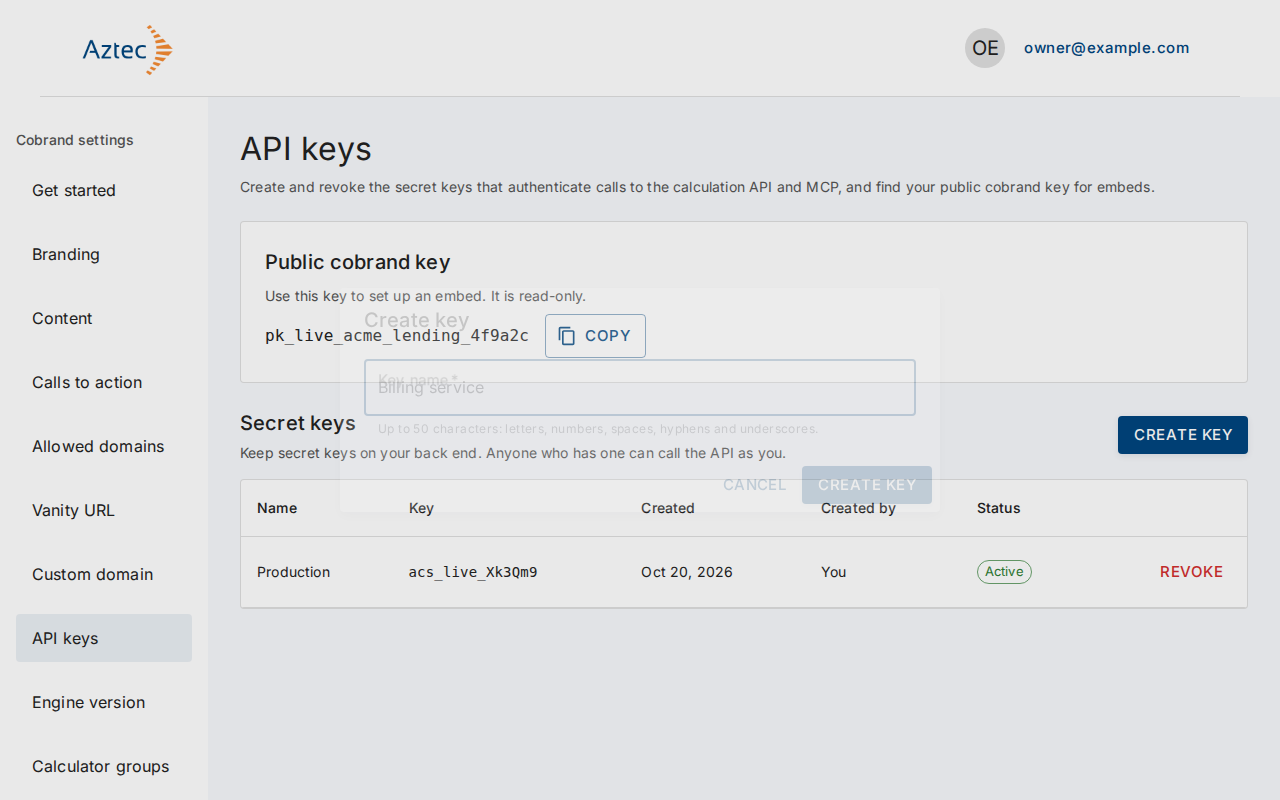
-
Select Create key in the dialog.
-
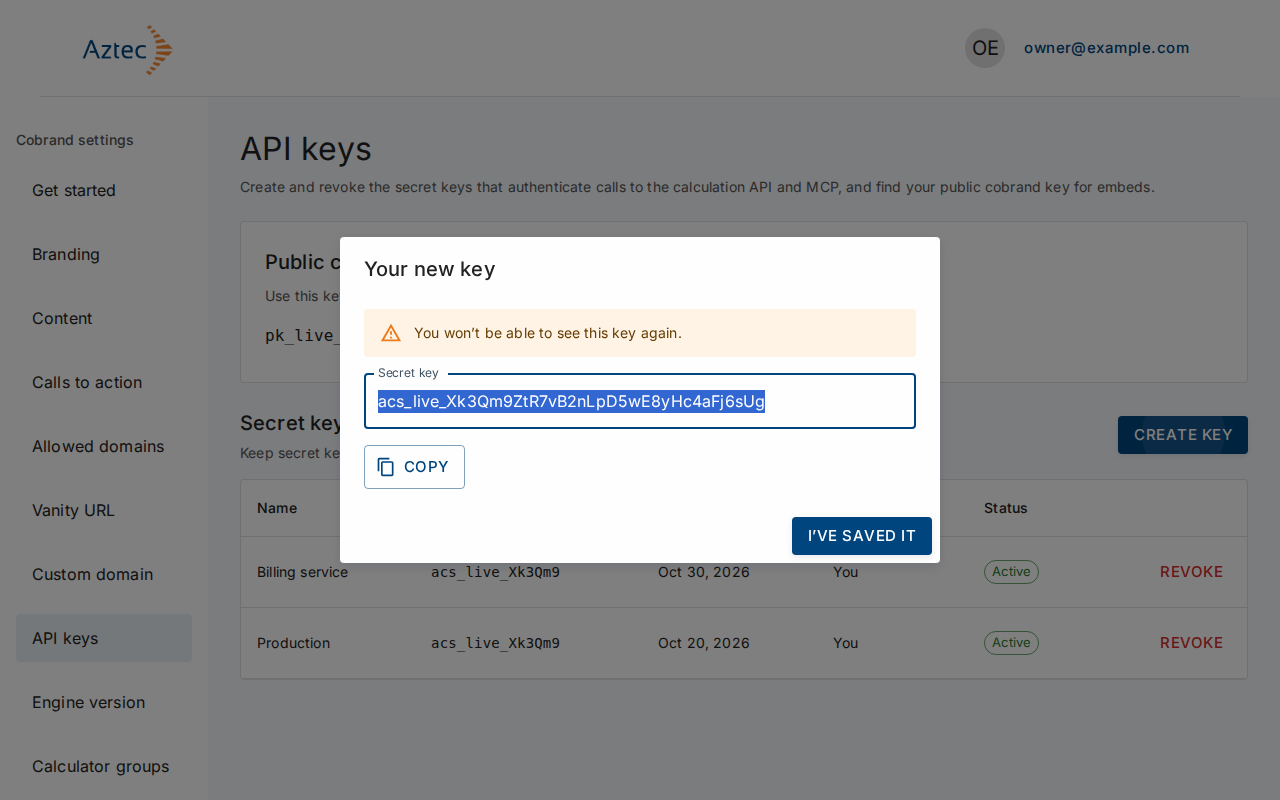
Copy the secret key from Your new key. The portal doesn't show it again. Select I’ve saved it when you have stored it.
-
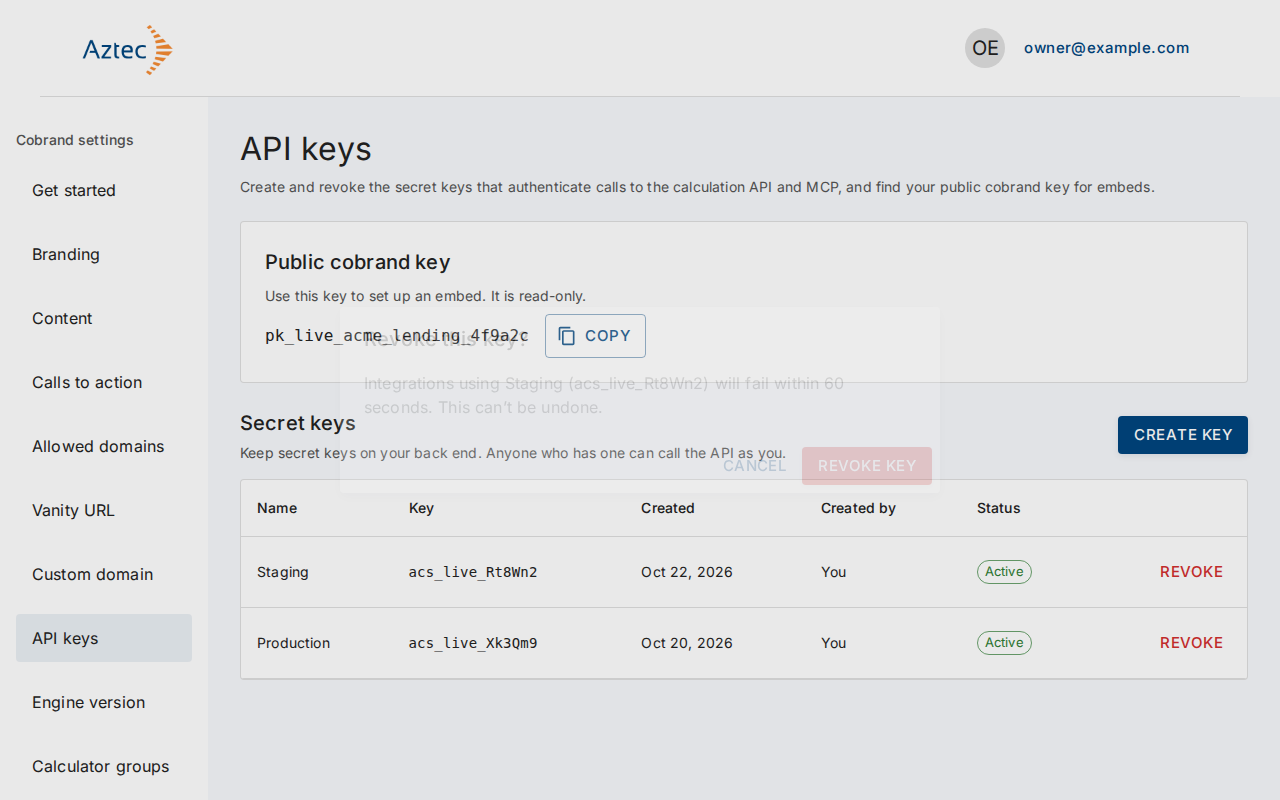
To stop a key working, select Revoke on its row, then Revoke key.
What you see when it works
- The new key appears in the Secret API keys table with its name, key prefix, created date, who created it and an Active status.
- A revoked key moves to Show revoked keys, with a Revoked status. Integrations that use it fail within 60 seconds. You can't undo a revoke.
Troubleshooting
-
You don’t have any API keys yet. Select Create key to make your first key.
-
Enter a name for the key. The name was empty.
-
The name can contain letters, numbers, spaces, hyphens and underscores. Remove other characters.
-
You already have an active key with this name. Choose a different name.
-
You can have up to 5 active keys. Revoke one to create another. Revoke a key you no longer use.
-
This is your only active key. Revoking it stops every API integration that uses it until you create a new key.
-
We couldn’t create the key. Try again. or We couldn’t revoke the key. Try again. Try again in a moment.
-
We couldn’t load your API keys. Try again. Select Try again.